Document version history
Open a document and choose More → Version history. Stored versions are separate from unsaved edits in an editor.
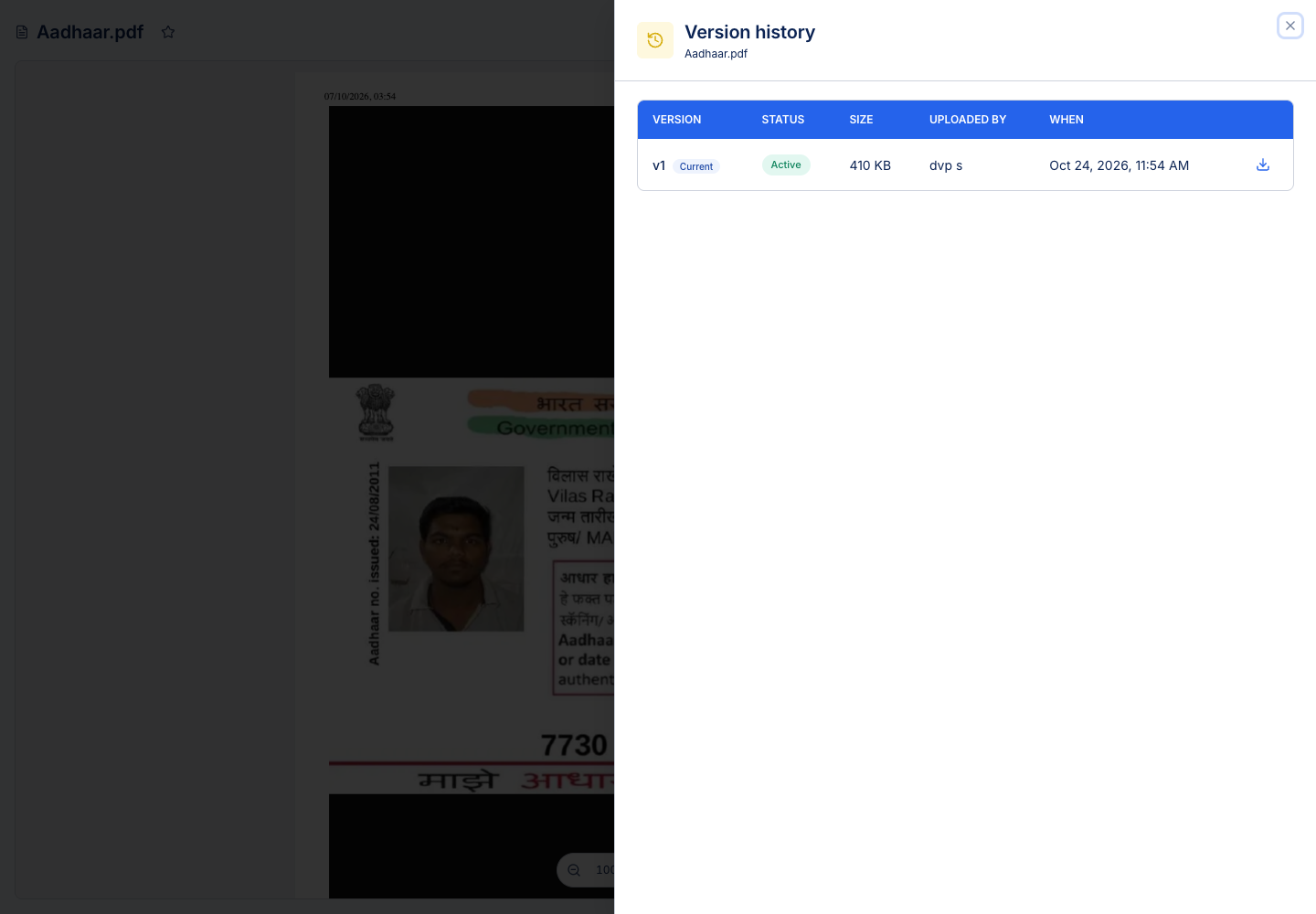
Read the history
Check the version number, upload time, uploader, size and status. The current version is the one normal preview and download use. A pending or rejected version is not automatically the current version.
You can download a particular version when permitted. To restore an older one, choose its restore action, read the confirmation and verify the resulting current version afterwards. Restoration changes the document's content state; it does not rename the document or move it to another folder.
Compare versions
Tick two supported versions and choose Compare, or compare an older version with the current one using its row action. Comparison needs two usable versions. A document with only one version cannot show a historical difference.
See Version comparison for PDF and text comparison tools.
Storage implications
Earlier versions remain stored and count towards storage usage. Moving a document does not remove that history. Moving it to Trash also retains versions until permanent deletion removes them.