Upload and scan documents
Open Documents → Browse, select a destination folder and use its upload control or drop files into the app. Your account needs upload access in that folder.
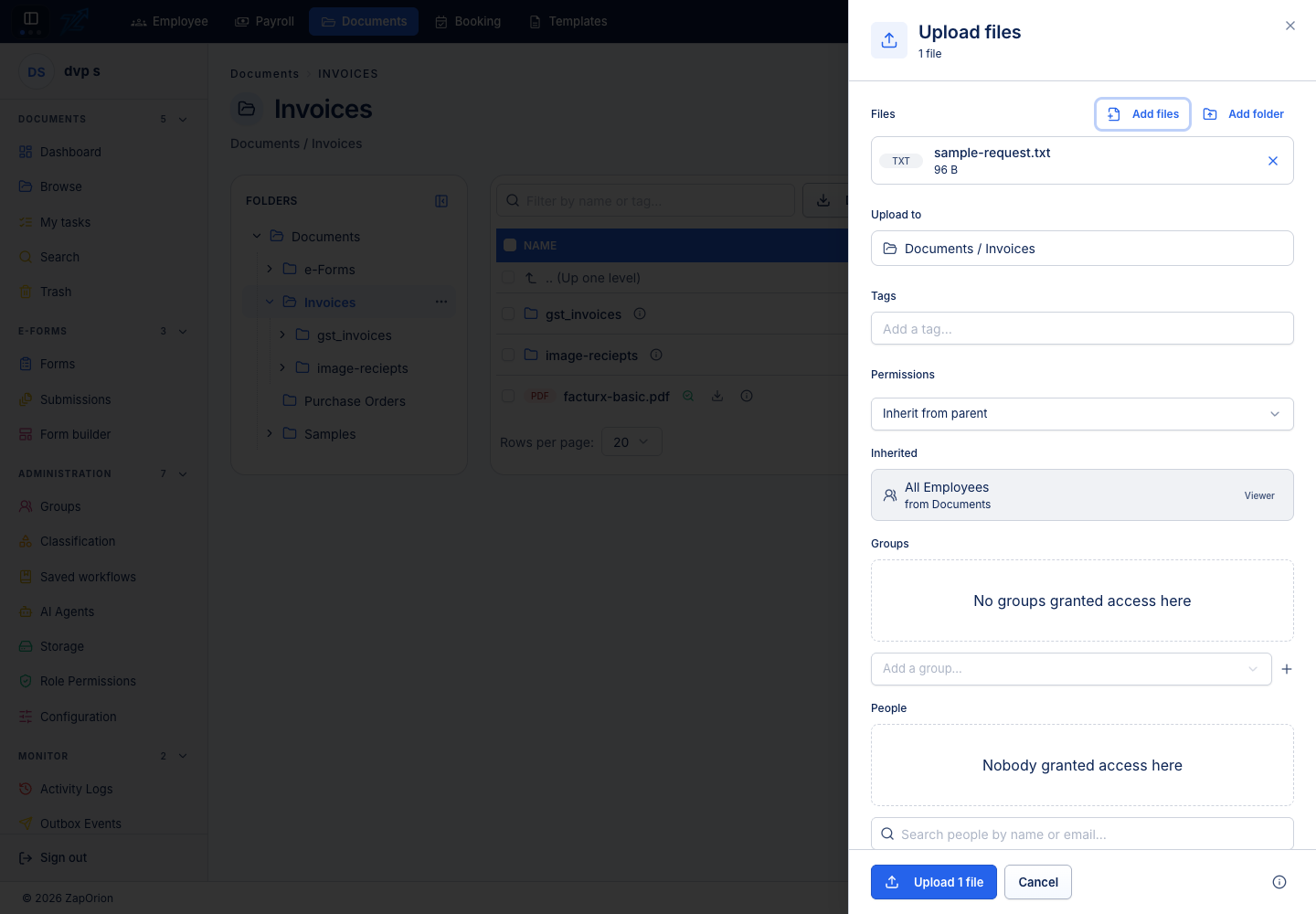
Review the batch
- Select one or more files. If you use a folder import, inspect the proposed folder structure too.
- Confirm the destination, file names and any tags or classification choices offered in the review panel.
- Resolve duplicate names using the choices shown. Adding a version and creating a separate document have different results.
- Remove accidental selections. Check the size and extension warnings.
- Start the upload and keep the page available until the queue reports completion.
Selecting files for review does not upload them immediately. A file can be refused by the tenant's allowed-extension list, size ceiling, quota or destination permissions.
Resolve duplicate names and folder picks
Replace uploads the next version and keeps the earlier versions. Tags selected here are added to the existing tags; permissions selected here replace the document's own permissions. Replace is unavailable for a file locked by someone else, in an active workflow, or one you cannot add versions to.
Keep both creates a numbered name, such as report (2).pdf. Skip leaves that selection out. Use the batch choice for all conflicts, or set individual file choices.
Folder picks keep file paths and subfolders, merging with an existing same-name folder. Empty folders are retained when dropped; the native Add folder picker supplies only the files. Batch tags go on every uploaded file. Setting custom upload permissions requires Manager access and must retain your own upload access.
For camera page correction, see Photo scanning. For administrator JSON transfers, see Folder export/import.
Follow the queue
The upload queue reports progress and errors per file. A failure for one file does not mean every file failed. Check the folder before retrying a batch to avoid unwanted copies. A successful upload makes the document available; content indexing, metadata extraction, classification or a default workflow can continue afterwards.
Scan or import from a device
Where the device and deployment provide scan/photo controls, select or capture the pages, review their order and appearance, then upload to the intended folder. Check orientation, legibility and missing pages before submitting. OCR does not repair unreadable source images.
After uploading
Open the new document, verify its name and content, and inspect its status. A workflow inherited from the destination folder may start automatically. Use Version history to confirm whether an upload created a new document or a new version.