Restore or permanently delete
Choose Documents → Trash. The Documents and Folders tabs show deleted items available to your account.
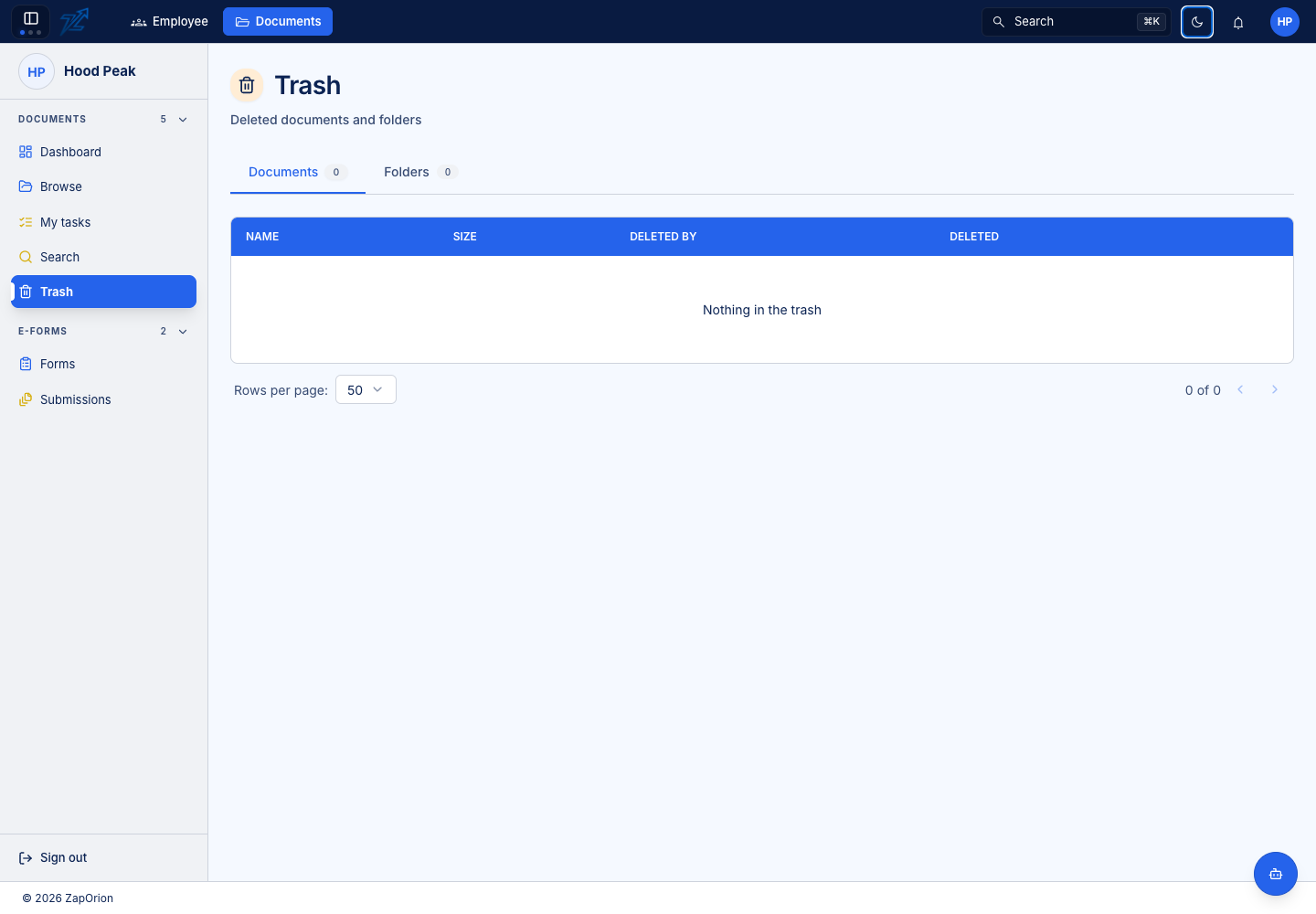
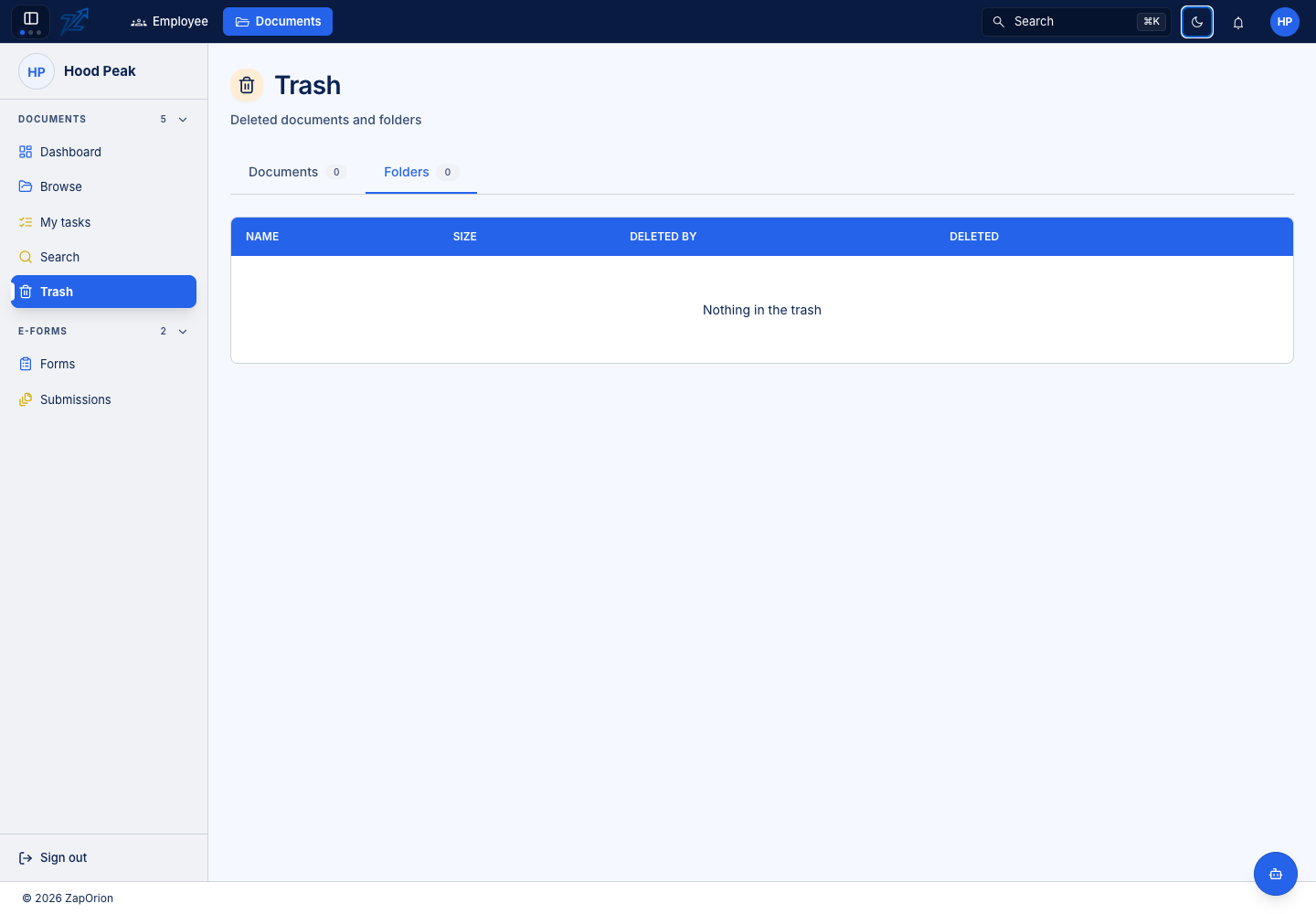
Restore an item
- Choose the correct tab and locate the item.
- Check its name, original location and deletion information.
- Choose Restore and follow any destination/conflict instructions.
- Open the destination folder and verify the result.
Restoring a folder can bring its contents back with it. A missing parent or a conflicting name can require attention. Restoring a document does not recreate outside links revoked by deletion.
Delete permanently
Permanent deletion removes stored content and its retained versions. Review the selected items and confirmation carefully. A partially successful batch needs inspection per item before you repeat it.
Moving an item to Trash does not immediately free all its storage: the retained objects and versions still exist. Permanent deletion is the operation that removes those retained objects, subject to completion of the deletion work.
Ordinary deletion cancels an active document workflow. A workflow's automated Delete action follows its own terminal success path; see File actions.