Sharing and item permissions
Open the folder or document's permission controls when your item role allows it. Item permissions govern access to stored content independently of the role that opens the Documents module.
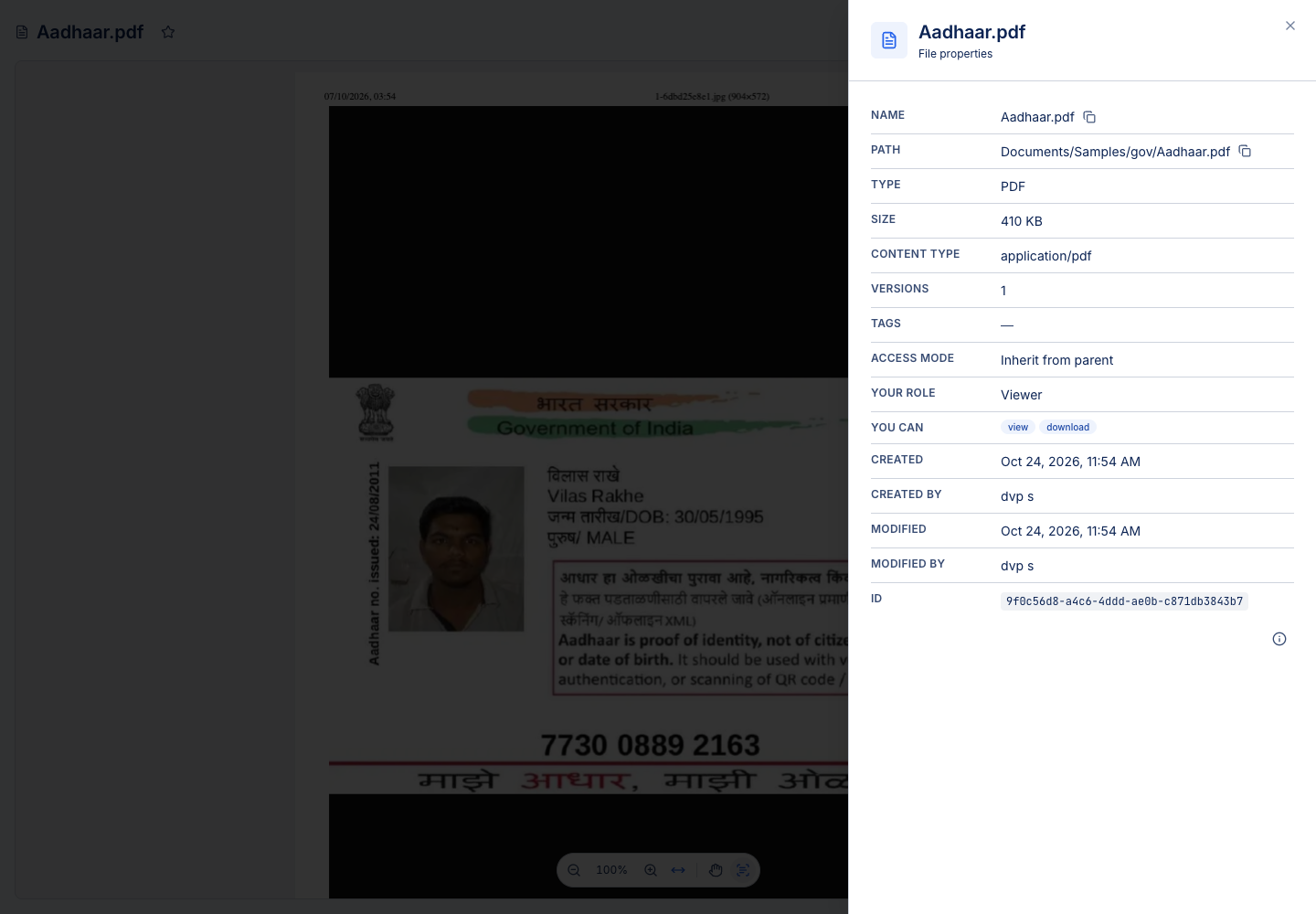
Choose the access mode
| Mode | Meaning |
|---|---|
| Inherit from parent | Use the parent folder's permissions without adding grants here |
| Inherit and add | Retain inherited access and add grants for this item |
| Restricted | Ignore access above this item and use only the grants defined here |
Grant Viewer, Editor or Manager access to groups or selected people. When several grants reach a person, the highest role applies. Check existing inherited access before trying to narrow access with an additional lower-role grant; it does not reduce a higher inherited role.
Share with an internal colleague
- Open Permissions for the item.
- Select the intended mode.
- Add the person or group and choose the appropriate item role.
- Save, then verify the effective access shown.
A copied document address is only a navigation link. The colleague still needs access when they open it.
Share outside the organisation
Where tenant policy permits, use the document's outside-link controls. Choose the audience, allowed actions and validity, then copy the created link. An email-specific invitation may require the recipient to prove their email address. An anyone with the link share can allow view/download only and depends on a separate tenant setting.
Review expiry and revoke a link when it is no longer required. Turning off new external sharing does not revoke all existing links; existing links continue until they expire or are revoked. Deleting a document to Trash revokes its outside links.
Do not confuse document sharing with an outside workflow invitation or an e-Form submission link. Each serves a different action and has its own controls.