Scan paper with a phone or camera
Use Upload → Camera to take a page photo or Upload → Photos to choose existing photographs. The dashboard upload widget offers the same photo actions. Phone camera/library controls follow the browser and device.
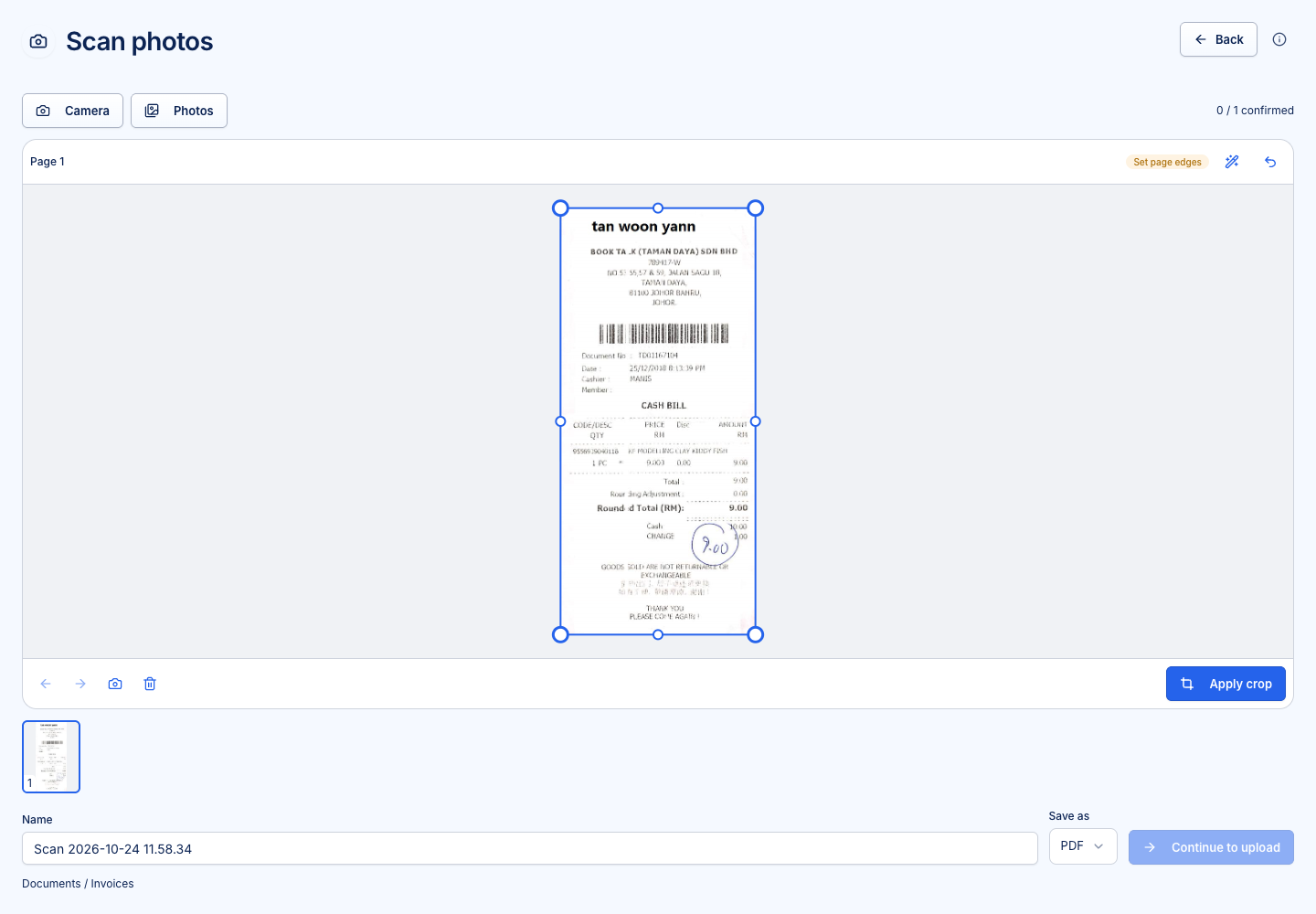
Straighten and confirm pages
- Photograph the entire page against a contrasting background with even lighting.
- Review the suggested outline. Drag its corners or edge midpoints to match the paper. The magnifier helps position a corner.
- Use Auto edges to try detection again, or Full photo to retain the whole photograph.
- Choose Apply crop to straighten the page.
- Rotate it and choose Colour, Grayscale or Black & white as needed.
- Confirm that page. Repeat for every page; all pages must be confirmed before continuing.
For keyboard adjustment, focus an edge/corner handle and use arrow keys; hold Shift for larger movements. If no page outline is detected, set the edges manually. A suggested outline is not a guarantee that all printed content is inside it.
Arrange the output
Use the page arrows to change order, Retake to replace just the current page, and Delete to remove an unwanted page. Edit edges returns to its original photo for another crop.
Enter the scan name and select Save as:
| Choice | Result |
|---|---|
| One document with the confirmed pages in the displayed order | |
| Images | One JPEG per page, numbered when there is more than one |
Choose Continue to upload, then review the destination, tags, permissions and name conflicts. Only the final Upload sends the files. Closing the scan session discards its local photos and edits.
If a HEIC/HEIF photograph cannot be opened by the browser, select a JPEG or retake it. The phone scanning flow does not require the desktop Scan Agent. A separate desktop Scan Agent option is available where that integration is configured.