PDF editing tools
Open a PDF and choose Fill and sign where your permissions and workflow allow it. The editor saves each completed change as a new document version.
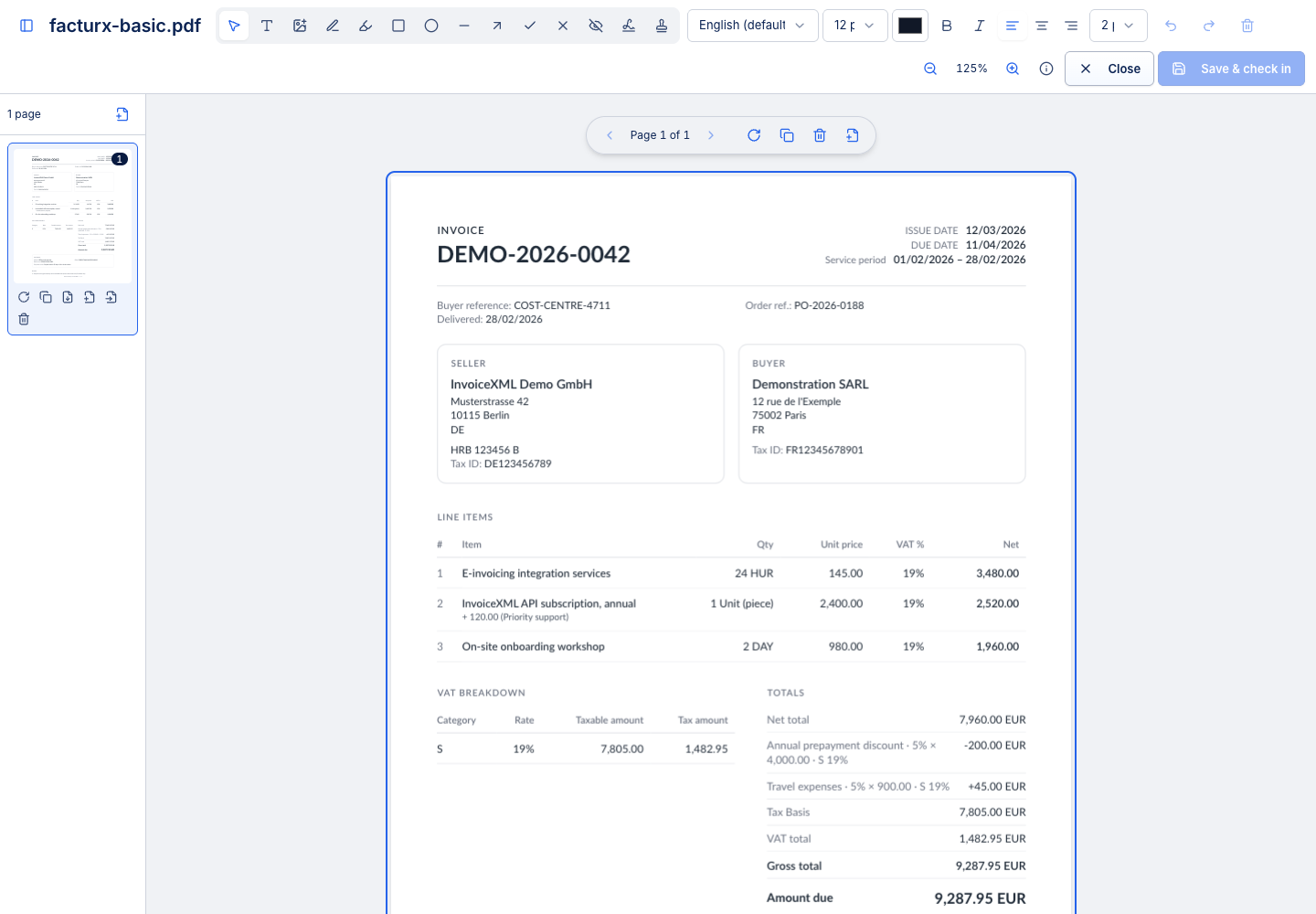
Add and adjust content
Use Text, drawing/highlight, signature, image, tick/cross and shape tools as appropriate. Click or drag on the page to place an addition. Switch to the arrow/select tool to move, resize, restyle or delete it. Drag a text box from its edge. The toolbar applies to the next addition or the selected item.
Use Ctrl+Z to undo and Ctrl+Shift+Z to redo. Correct placement and spelling before saving. Added text, drawing and signature marks are written into the page and cannot be independently edited as the original objects after save.
Existing content and Hide
The editor does not rewrite existing page text or pictures in place. Hide paints a white box over an area; new text or an image can be placed over it. The original bytes remain in the PDF. Hide is visual covering, not secure redaction. Do not use it to remove sensitive information.
Manage pages
The page controls/thumbnail rail can navigate, rotate, duplicate, delete, insert blank pages, insert pages from another PDF and extract pages to a new document. The document must retain at least one page. Confirm the intended order and destination before saving an extraction as a separate item.
Fillable forms and fonts
Existing PDF form fields accept values in their boxes. These are stored as form data where the operation preserves the form; merging or rearranging pages can flatten fields while retaining their visible values. Use the select tool to inspect or remove a field only when that is intended.
The chosen font must be available for the characters used. Check non-Latin text in the saved output. If a required font cannot be loaded, read the save message and verify that no text is missing.
Save, close and reopen the document; then inspect Version history. A manually placed signature mark is separate from a required workflow e-signature action.