Edit images
Open a supported image and choose Edit image. The editor's controls offer the adjustments supported for that format; preview changes before saving.
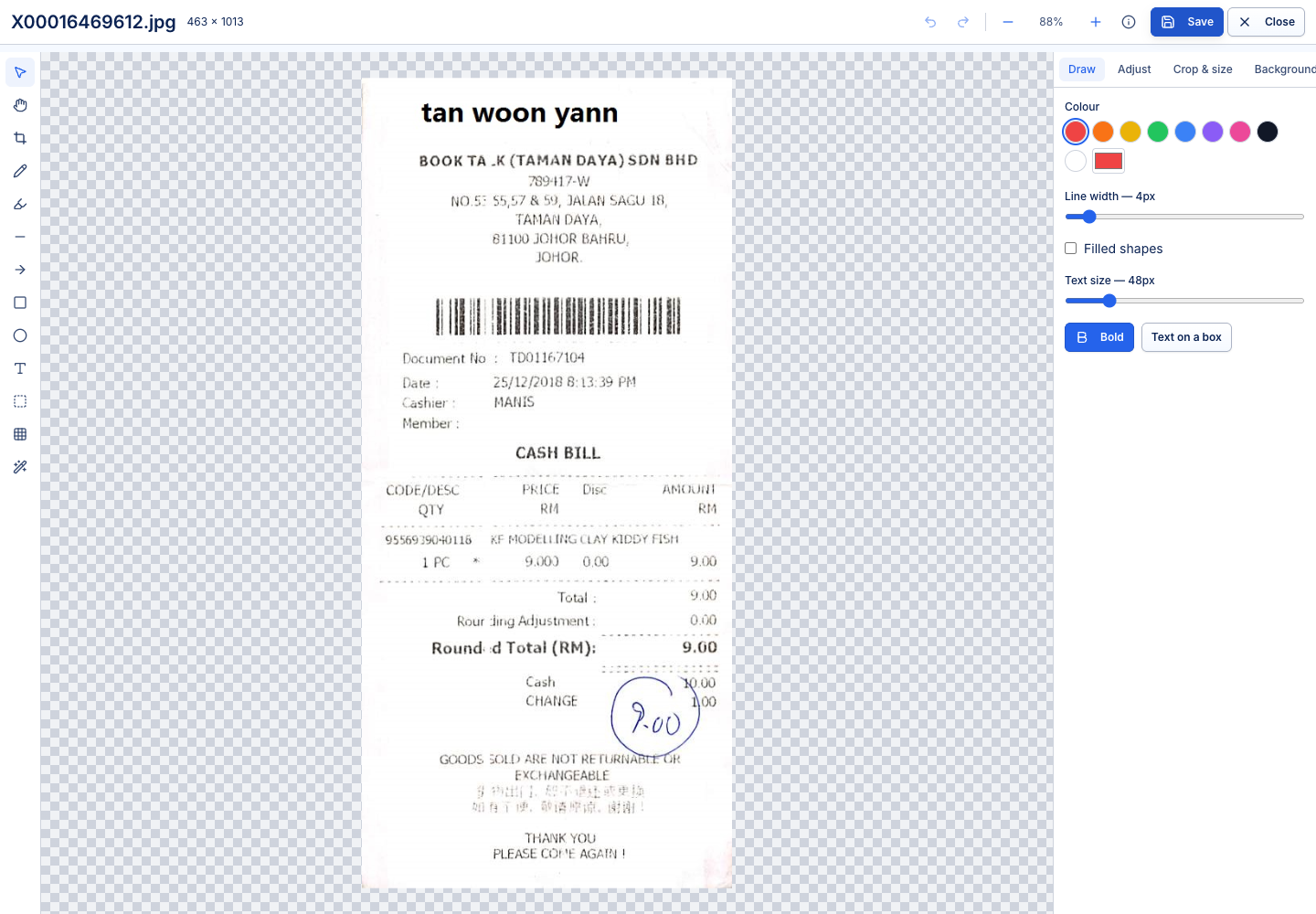
Make a controlled change
- Confirm the source document and its current version.
- Apply the required crop, rotation, resize or other offered adjustment.
- Inspect the preview at a useful zoom for legibility and detail.
- Choose the available save-version or save-copy action and review the output name/type.
- Reopen the stored result and confirm the appearance and size.
A new version requires the appropriate item permission, a compatible output format and an available edit session. Some input formats can be opened but must be saved as a copy in a different format. A live workflow can limit new versions to its eligible participants.
A padlock or lost edit session can disable saving. Resolve the lock rather than opening another editor to bypass it. Closing without saving discards the editor's changes.
Image OCR in the viewer helps select text; it does not make a blurry or incorrectly cropped source reliable. Use Photo scanning when starting from photographs of paper.