Check-out and check-in
Check-out reserves a document while you work. An editor's temporary lock usually lasts while the editor is open; a check-out remains until it is checked in or cancelled.
Check out a document
- Open the document preview or its row menu.
- Choose Check out where available.
- Confirm the lock belongs to you, then edit the document or prepare the replacement file.
- Choose Check in and follow the available save/upload flow when your change is ready.
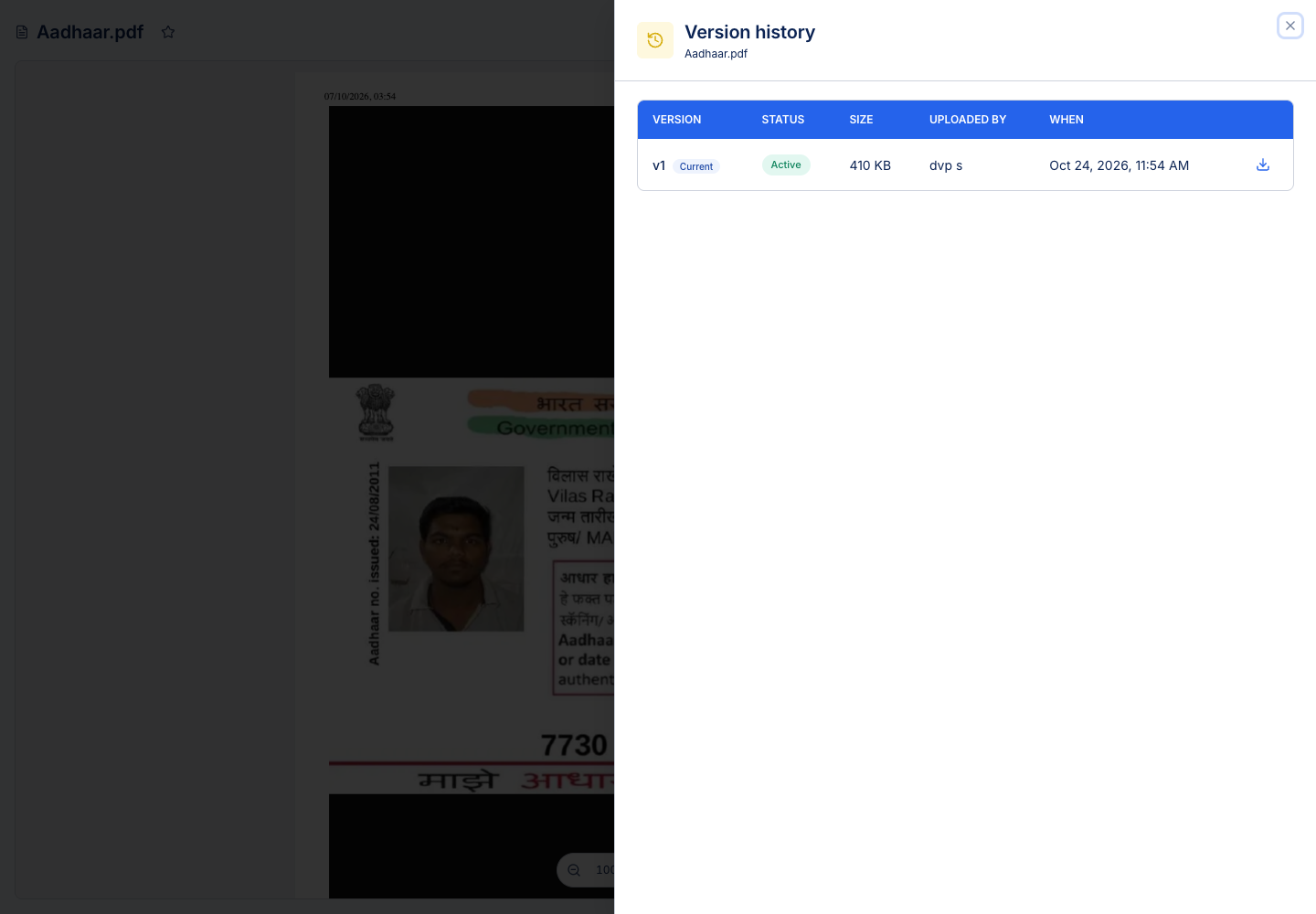
- Confirm the new version in Version history.
If another person holds the lock
You can continue to view and download if your permissions allow it. Editing is blocked. A check-out also prevents other people from renaming, moving or deleting the document.
Contact the named holder before releasing their lock. The holder, appropriate managers and administrators can have release controls. Releasing another person's lock can interrupt their work; it does not save their unsaved content.
Cancel or recover
Use Cancel check-out if you no longer need the reservation and are not submitting a replacement version. An abandoned temporary edit lock may be releasable from the preview. Verify the visible holder and lock type before acting.
A locked file can also make an automated rename, move or delete fail. The workflow timeline shows that result separately from your interactive check-in.