Browse folders and documents
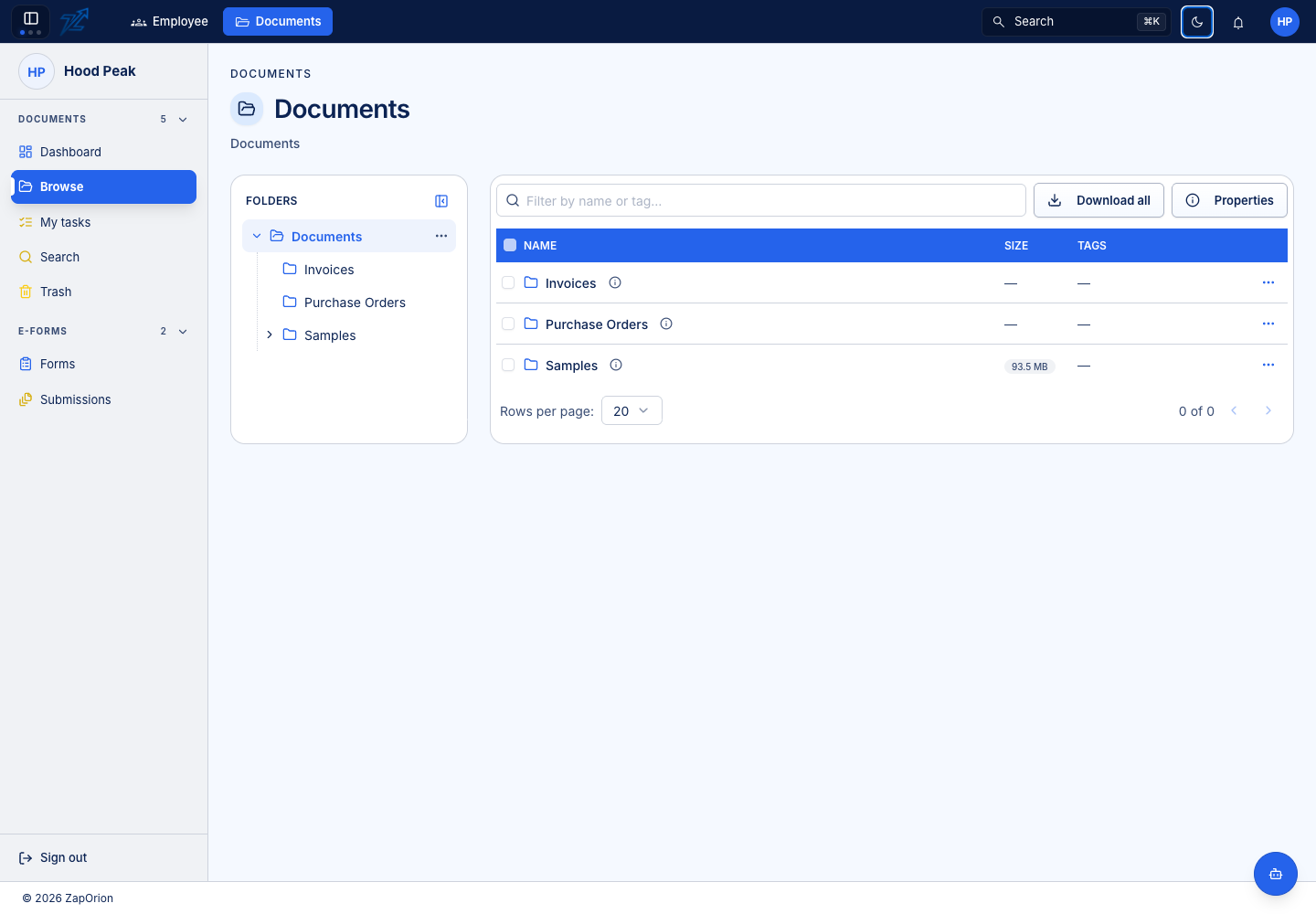
Choose Documents → Browse. The folder tree is on the left and the selected folder's contents are on the right. The root can contain folders without containing documents directly.
Open and find items
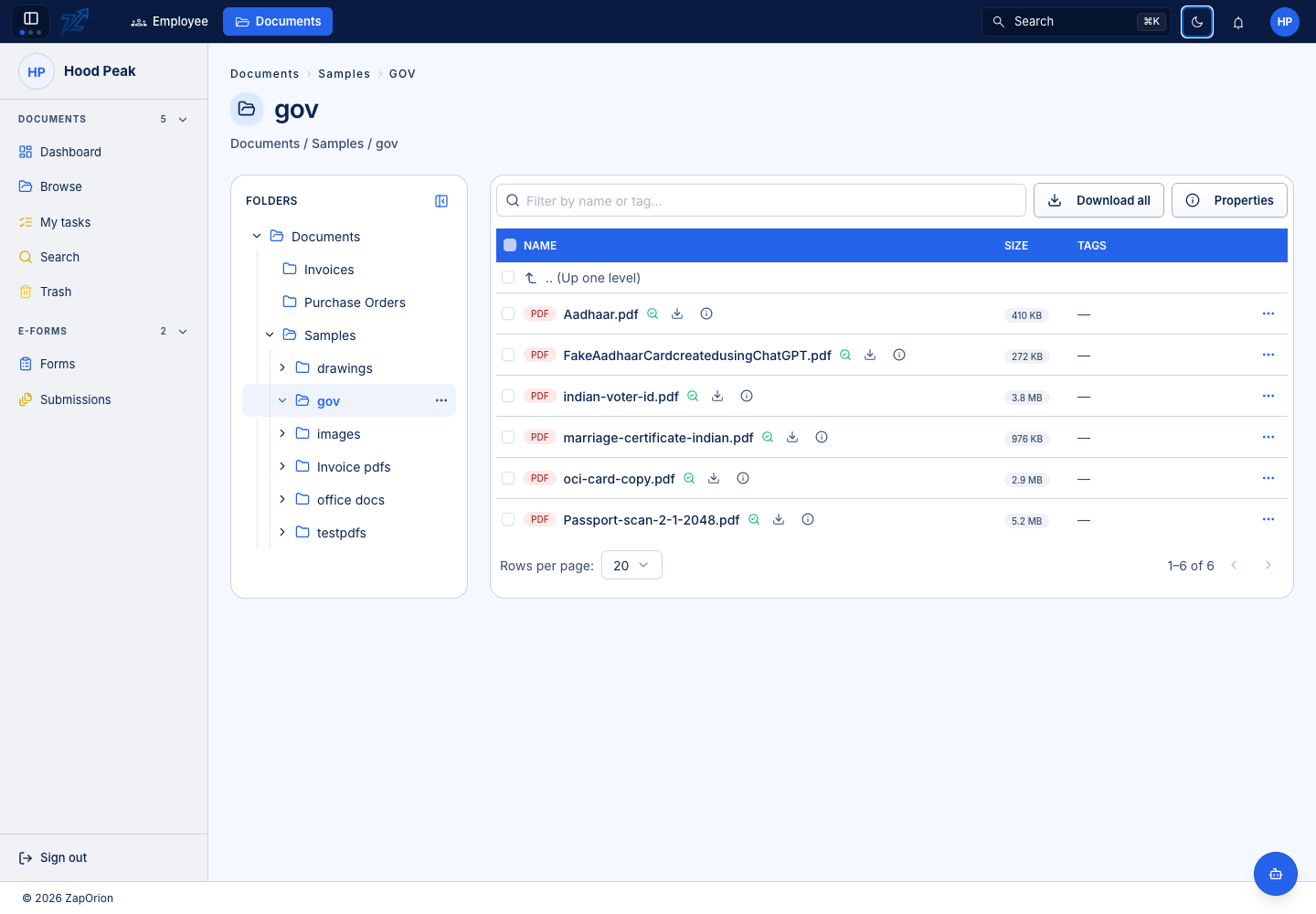
- Choose a folder in the tree, or click its name in the contents list.
- Follow the breadcrumb or Up one level to return to a parent.
- Enter a name or tag in the folder filter. The server searches that folder's documents across its pages.
- Click a document name to open its preview. Close it to return to the list.
The row menu and Properties show actions your account can perform. A visible document can still be read-only. Workflow badges show whether it is in review, complete or rejected.
Organise a folder
Where permitted, use the folder menu to create a subfolder, rename it, move it, inspect Properties or manage permissions. Choose the destination carefully when moving: the document or folder may inherit a different access policy there.
Select checkboxes to act on multiple rows. Review the selection before downloading or deleting. Folder downloads collect the contents you may download into an archive; large trees take longer to prepare.
Understand sizes and state
A document's displayed file size describes its current version. Storage usage can be larger because older versions remain stored. Folder totals can include stored versions and trashed items beneath that folder.
A padlock indicates an edit session or check-out. You can usually still read and download the current version, while changes are limited until the lock is released. See Check-out and check-in.