Create a PDF document template
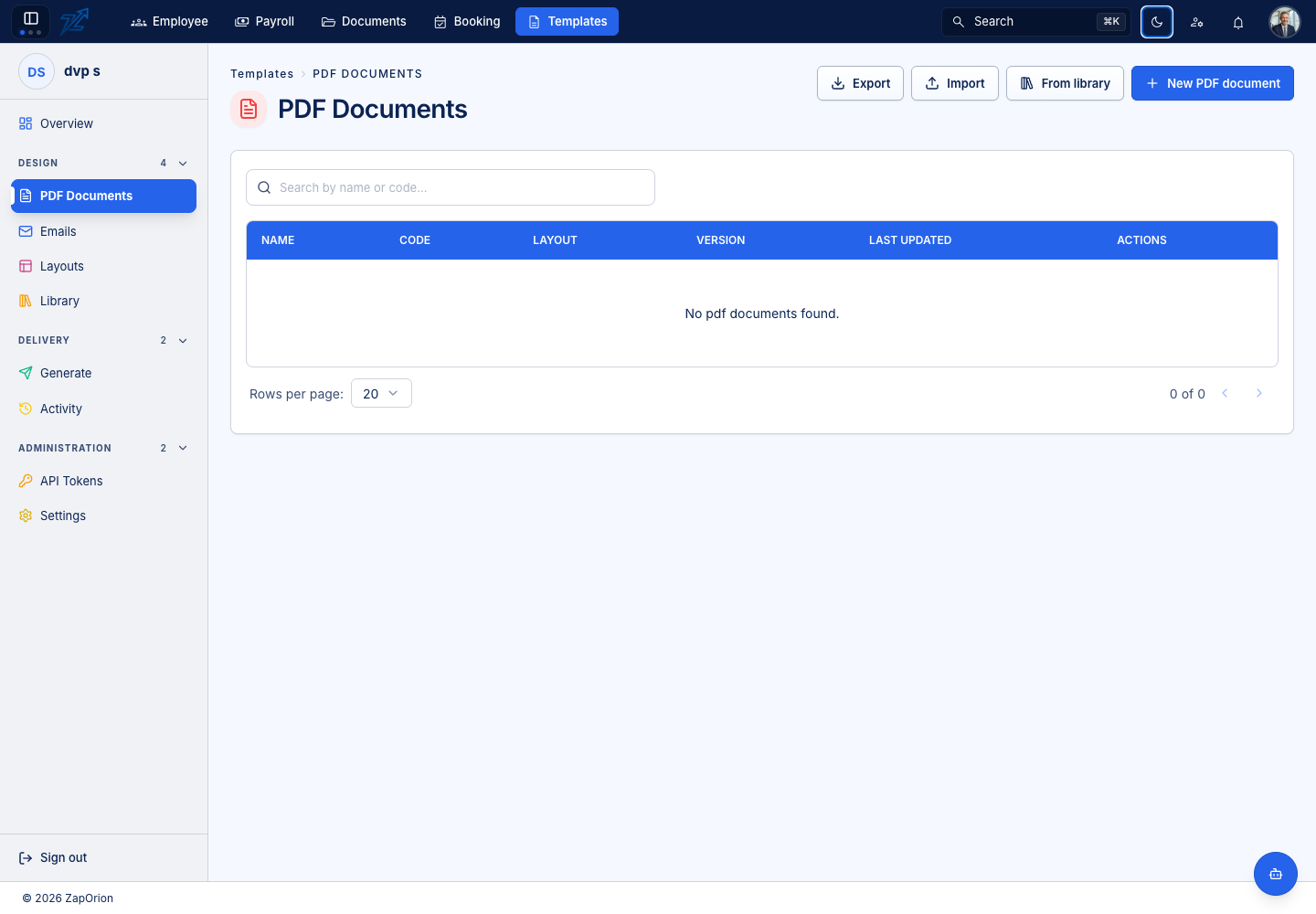
Open Design → PDF Documents. The list is separate from Emails and shows each template's name, code, layout and active version. Not active means the template has no selected active version.
Create and configure
- Choose New PDF document, or From library for a starter.
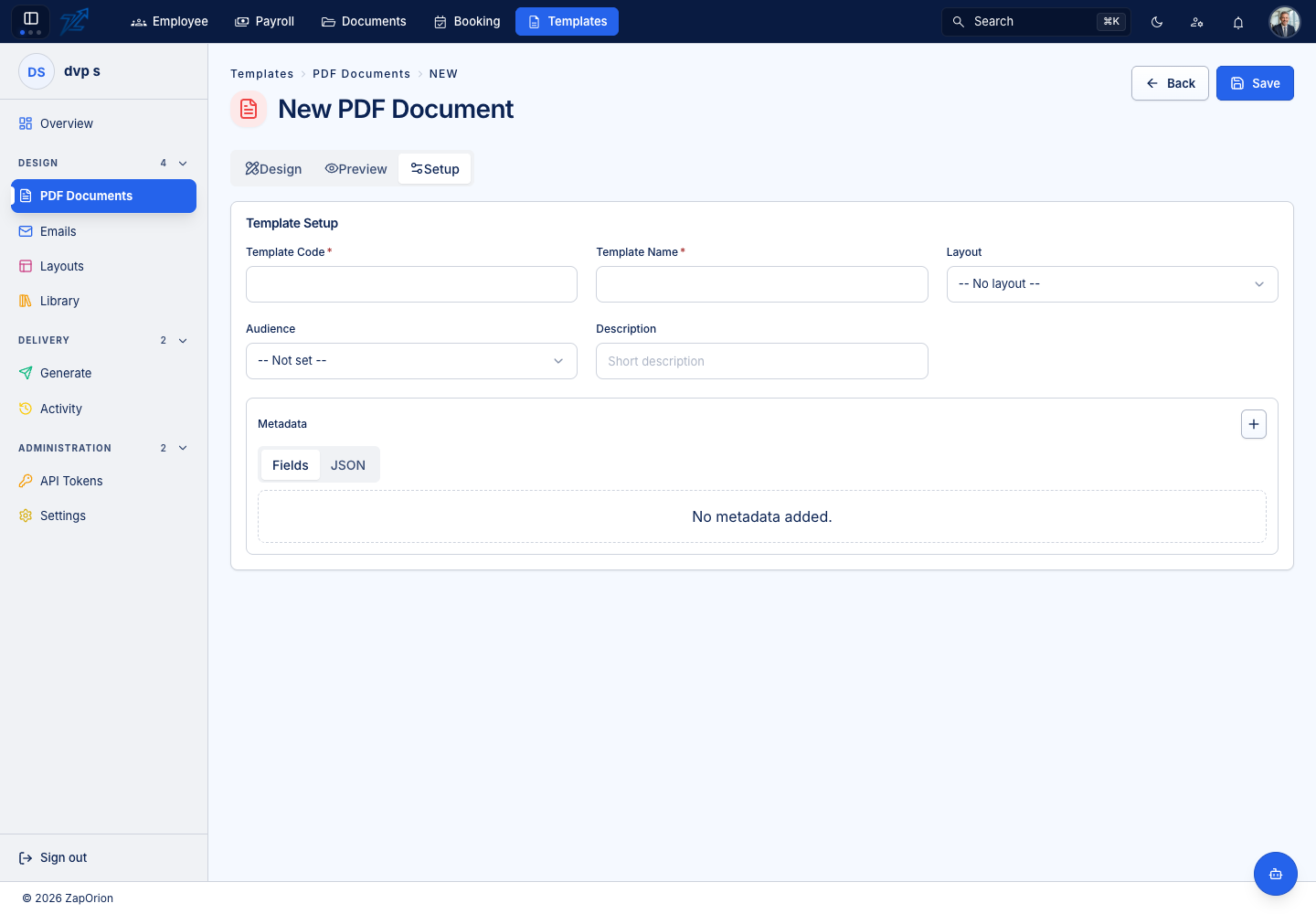
- Open Setup and enter the required code and name. Use a stable code that integrations can recognise.
- Select the layout, description and audience/category options offered for the template.
- Define template metadata for fixed reusable values; add representative Input JSON for dynamic values.
- Return to Design and write the body.
Design the printable page
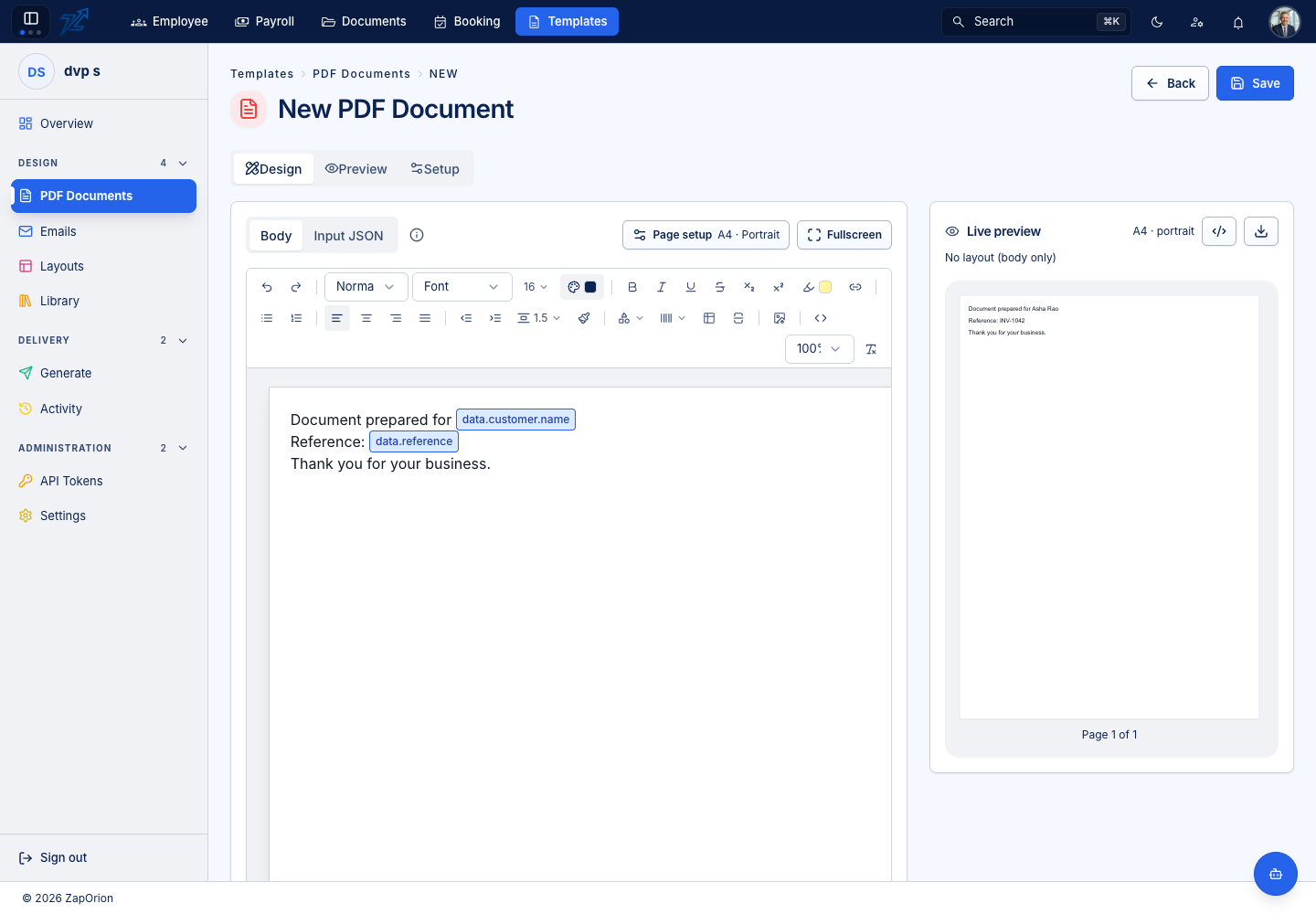
Use the rich-text toolbar for fonts, emphasis, alignment, spacing, tables, images, links, supported shapes and barcode/QR features. Use Page setup for size, orientation, margins and page appearance. Inspect content near page boundaries and allow room for the layout's header/footer.
Use Fullscreen for more authoring space, and the preview controls to show/hide the preview alongside the designer. The Preview tab gives a larger rendered view. Type {{ to insert variables from available data and reusable blocks.
Save and test
Save creates the first draft or updates the loaded draft. Cmd/Ctrl+S invokes Save. Resolve invalid Input JSON, unresolved variables and unknown functions before saving.
Use browser PDF/HTML to inspect the current on-screen content. Server PDF/HTML requires a saved template; check the selected saved version and data before treating it as final output. See Versions before activating a design.
The row menu also offers Edit, Clone, Archive and Delete. Cloning a template starts a new design identity with its own code. Archiving and deletion affect availability; check integrations that use the code first.