Reusable layouts and blocks
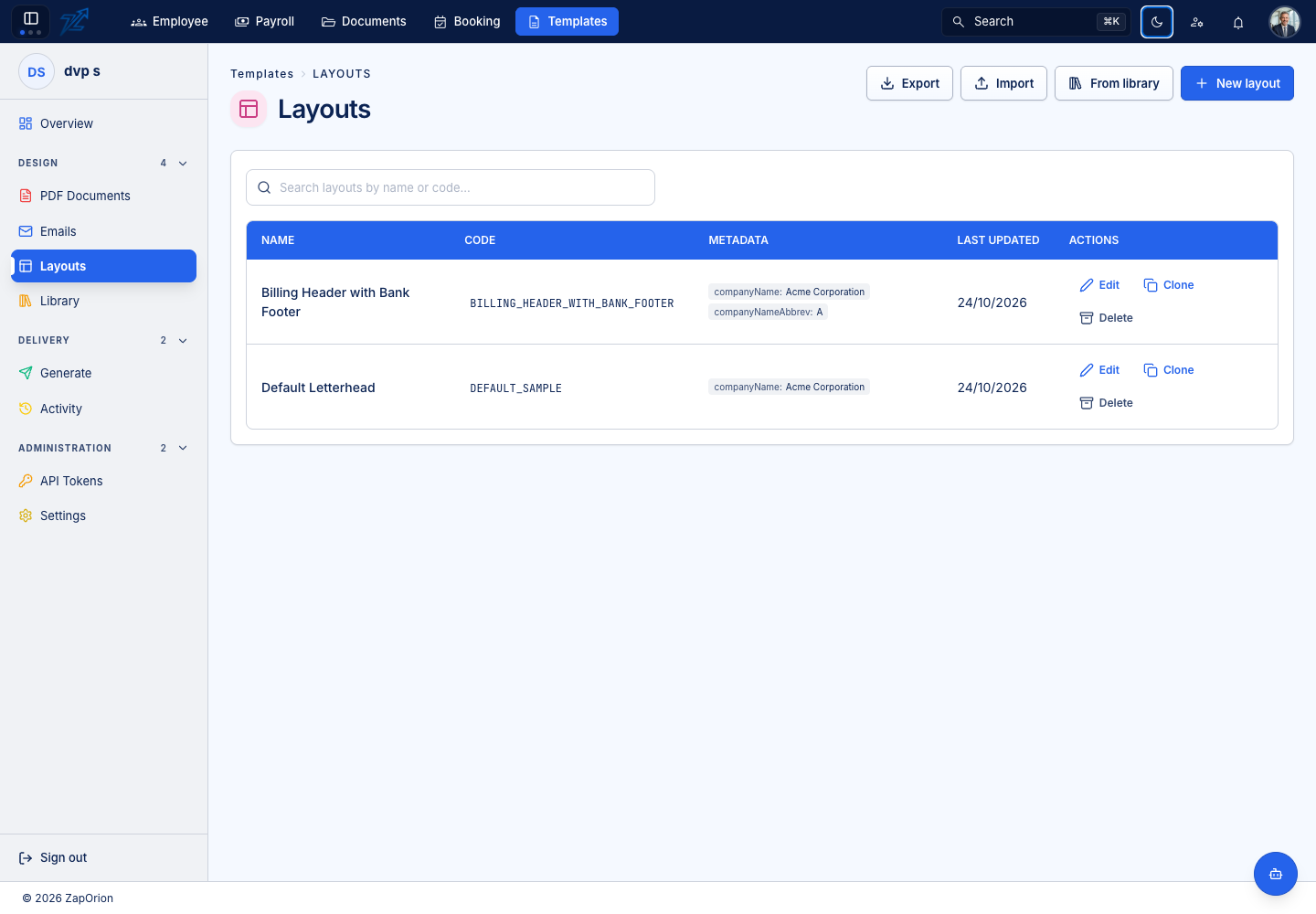
Open Design → Layouts. A layout provides reusable header/footer content and named blocks that templates can use.
Design a layout
- Choose New layout, From library, or Edit an existing layout.
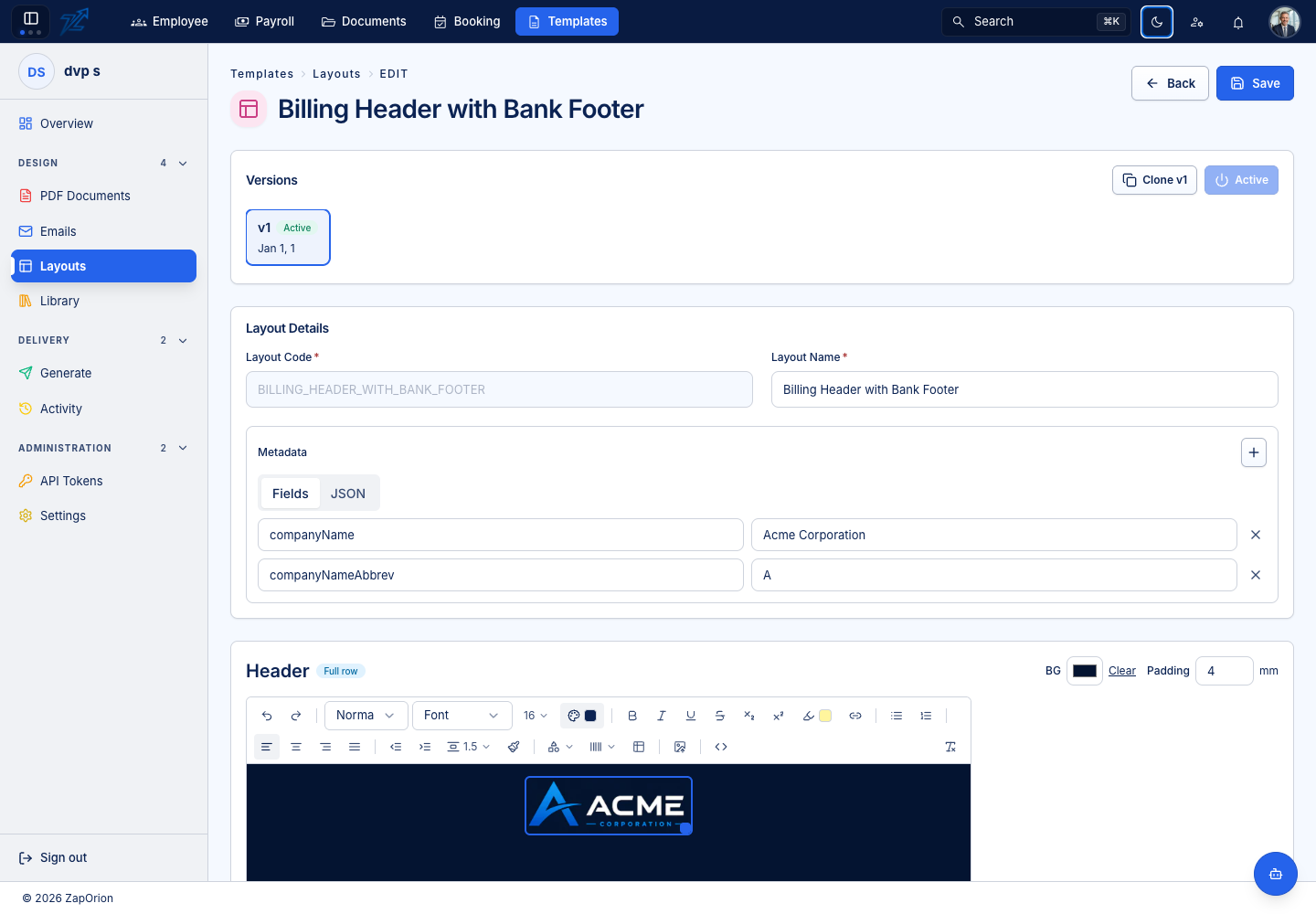
- Enter a unique Layout Code and useful Layout Name.
- Configure fixed metadata, such as organisation details, where appropriate.
- Design the header and footer, with the required background and padding.
- Add Image or HTML blocks, give them useful names and populate their content.
- Inspect the preview, including the area reserved for the template body.
- Save a draft, review it and activate its intended version.
The image library can provide a starting asset. Check the final image size, clarity and placement in a generated document as well as in the editor. An oversized header/footer can leave too little room for the body.
Reuse a layout
Select the layout in a template's Setup, or choose an override when generating a document. Insert named reusable block references using the variable picker so the reference matches the actual block.
Layouts have an independent version history. Save updates a draft; Clone creates a new draft; Activate selects the version to use. Published/active body content is immutable. Clone it before changing the header, footer or blocks.
Changing an active layout can affect several designs that use it. Check representative PDFs and emails before promoting the new layout version.