Import, export, clone and retire designs
PDF Documents, Emails and Layouts provide Export and Import controls. Use them to transfer supported design definitions between environments or maintain a reviewable copy.
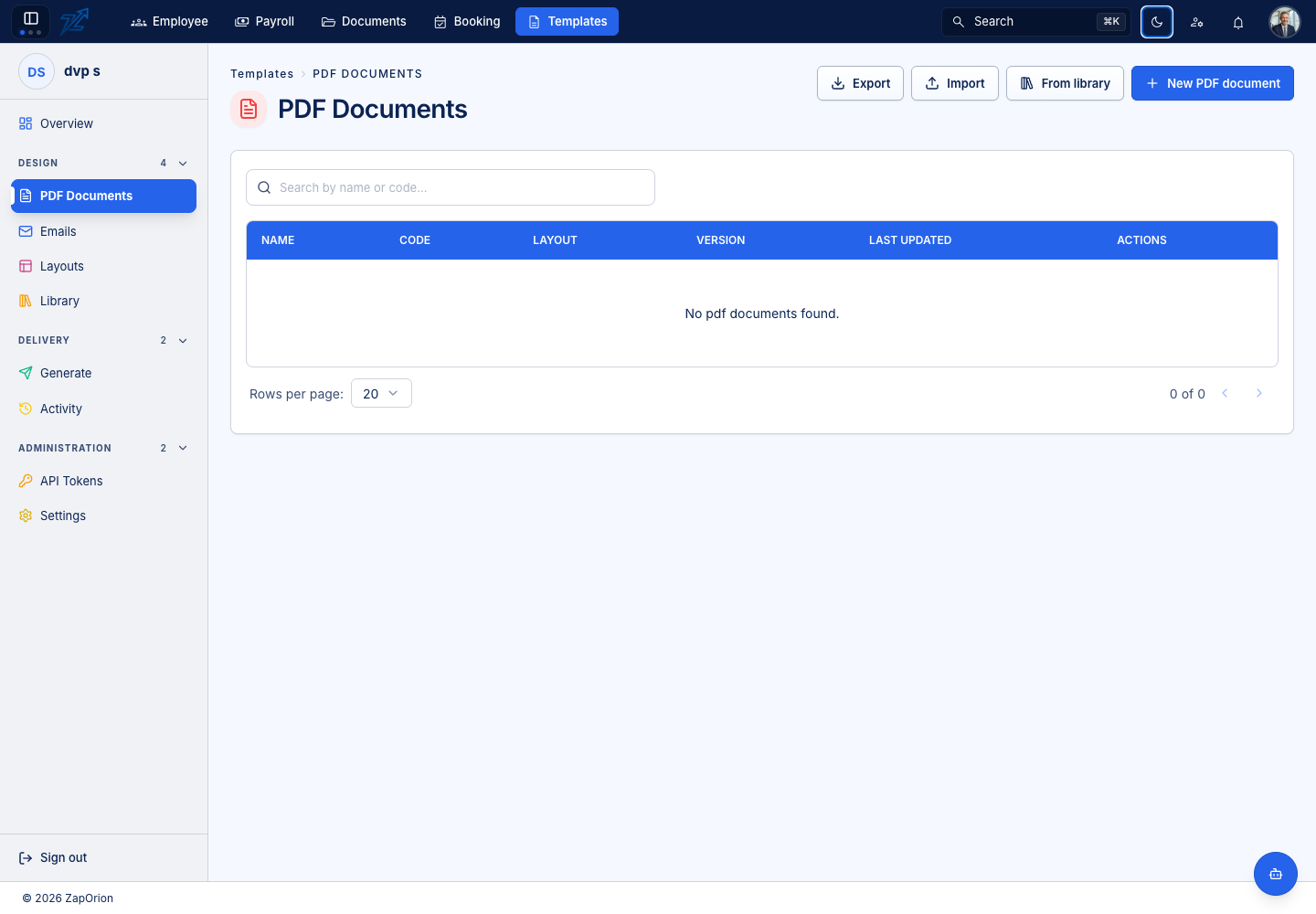
Export
- Open the relevant list.
- Choose Export and review the selected rows.
- Select the designs you intend to include, then download the JSON export.
- Retain related layouts and sample assets needed by the receiving environment.
Exports can contain business content, fixed metadata and sample data. Review them before sharing.
Import
- Choose Import and select a supported exported JSON file.
- Review valid/invalid entries and the create-versus-update plan.
- Check codes carefully: an existing code can identify an item that will be updated.
- Select the entries intended for import and confirm the operation.
- Review created, updated and failed counts, then open the imported designs and check versions/layouts before use.
A confirmed batch import writes records. It differs from using a library starter, which opens an editable new-design draft, and from Documents workflow import, which remains unsaved until Save.
Clone, archive and delete
Use the row menu's Clone to start an independent template or layout. Give the copy its own code and review its references. Use version Clone when the same template needs a new revision instead.
Archive an obsolete template when it should be retired from ordinary use. Delete removes its record and can affect callers that reference its code. Review integrations and active layouts/templates before removing shared dependencies.