Generate, download and email a document
Open Delivery → Generate → Single document. You need Template management access and an appropriate active PDF document template.
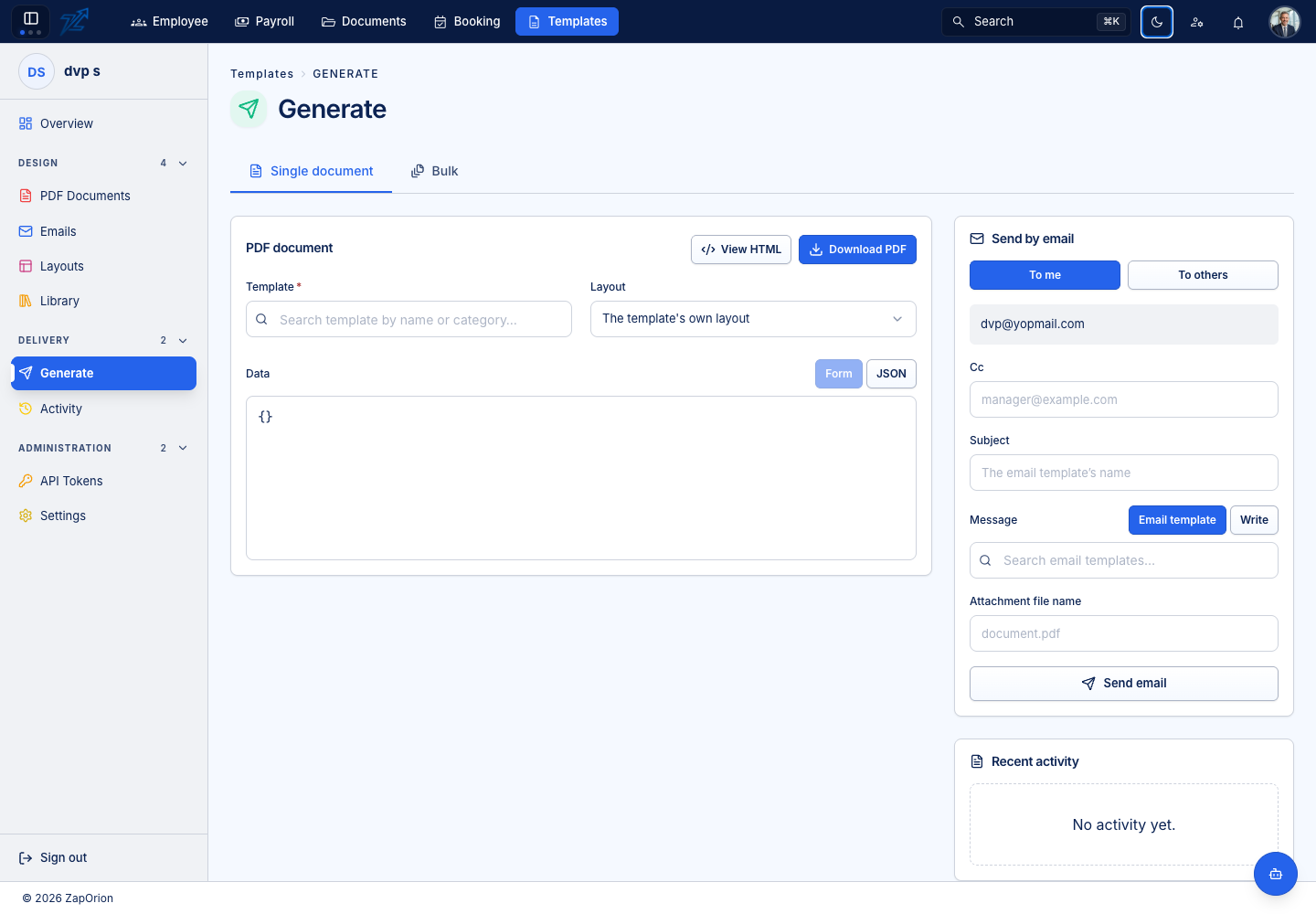
Generate one PDF
- Choose the PDF document template by its name/code.
- Keep The template's own layout or select a layout override.
- Fill the generated Form fields, or switch to JSON for the full data object.
- Review names, dates, amounts and repeated rows. The form is derived from the selected template's variables and sample data; it does not look up business records for you.
- Choose View HTML to inspect the rendered result, or Download PDF to generate a PDF.
- Open the downloaded file and verify pagination and content.
Follow the data structure shown for the selected template. An unresolved field often indicates a wrong path or missing input rather than a formatting problem.
Send by email
- Complete the PDF template and data selection above.
- Choose To me or To others and review the actual recipient list.
- Set Cc and the subject.
- Choose Email template to render a saved message from the same data, or Write to compose the message here.
- Set the attachment file name if required.
- Review every recipient, then choose Send email.
- Check the confirmation and Activity for the recorded delivery result.
Recipient lists accept the separators offered by the form, including commas, semicolons or line breaks. Sending is a real external action. A preview or a saved draft does not send email.
If the result is unexpected
Check the active saved template version, layout and supplied data. Browser authoring preview can contain unsaved draft edits, whereas ordinary generation uses the saved active design. Activity can distinguish a failed render, a failed email and an email stopped by configuration.