Design email templates
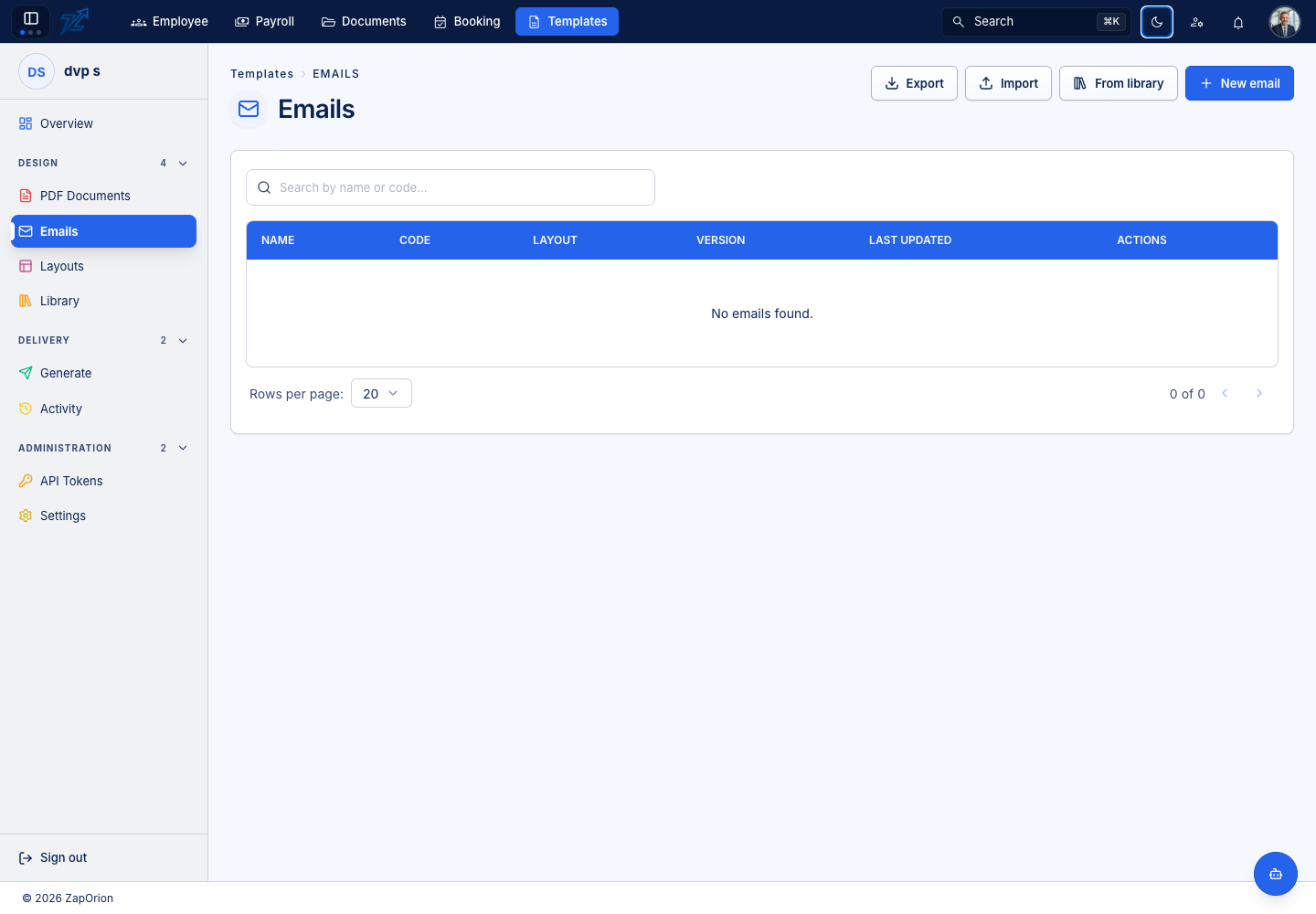
Open Design → Emails. Email templates use a single email-width canvas rather than PDF page boundaries.
Author the message
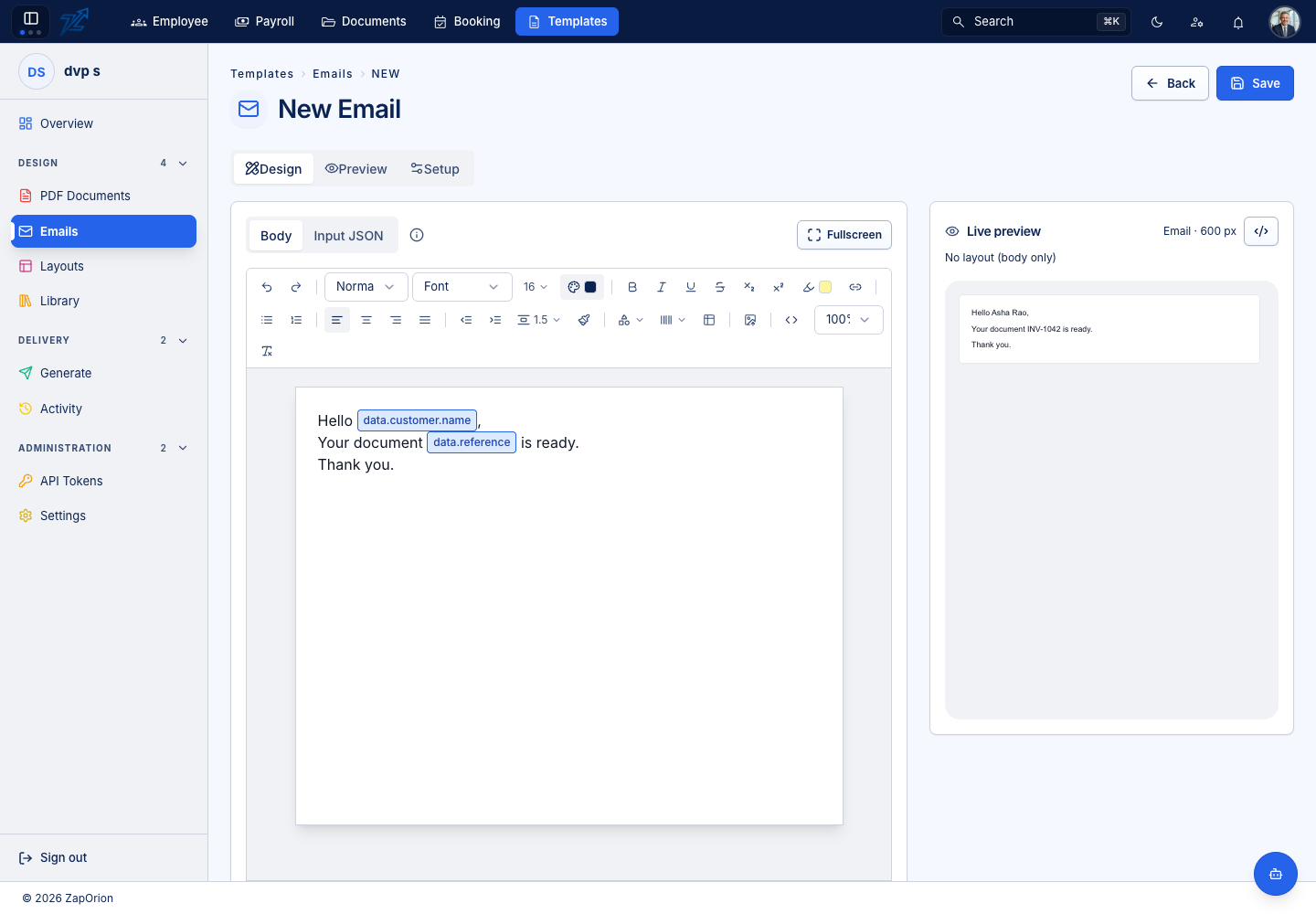
- Choose New email or copy an appropriate shared email from Library.
- Set its code, name and other descriptive fields in Setup.
- Add representative Input JSON for the values the message needs.
- Compose the body, links and images. Insert variables with
{{and apply formatting functions where useful. - Choose an optional layout and review the composed message.
- Save the draft, review it and activate the intended version.
Use concise content and check long names, empty optional fields and small-screen widths. A preview confirms content and layout in the app; the recipient's email client can render HTML differently.
Use the email during delivery
In Delivery → Generate → Single document, choose the PDF document, then select an Email template as the message source. The selected message is rendered from the same supplied data. Alternatively choose Write to compose a message for that send.
Set recipients, Cc, subject and attachment name in the delivery form before sending. An email template's stored body is not a recipient list. See Generate and send.
Check Activity for Email sent, Email failed or Email stopped by configuration. Do not assume a successful preview means that delivery is enabled.