Generate documents in bulk
Open Delivery → Generate → Bulk. A bulk job renders one PDF template against many input records. It does not send the single-document email form once per row.
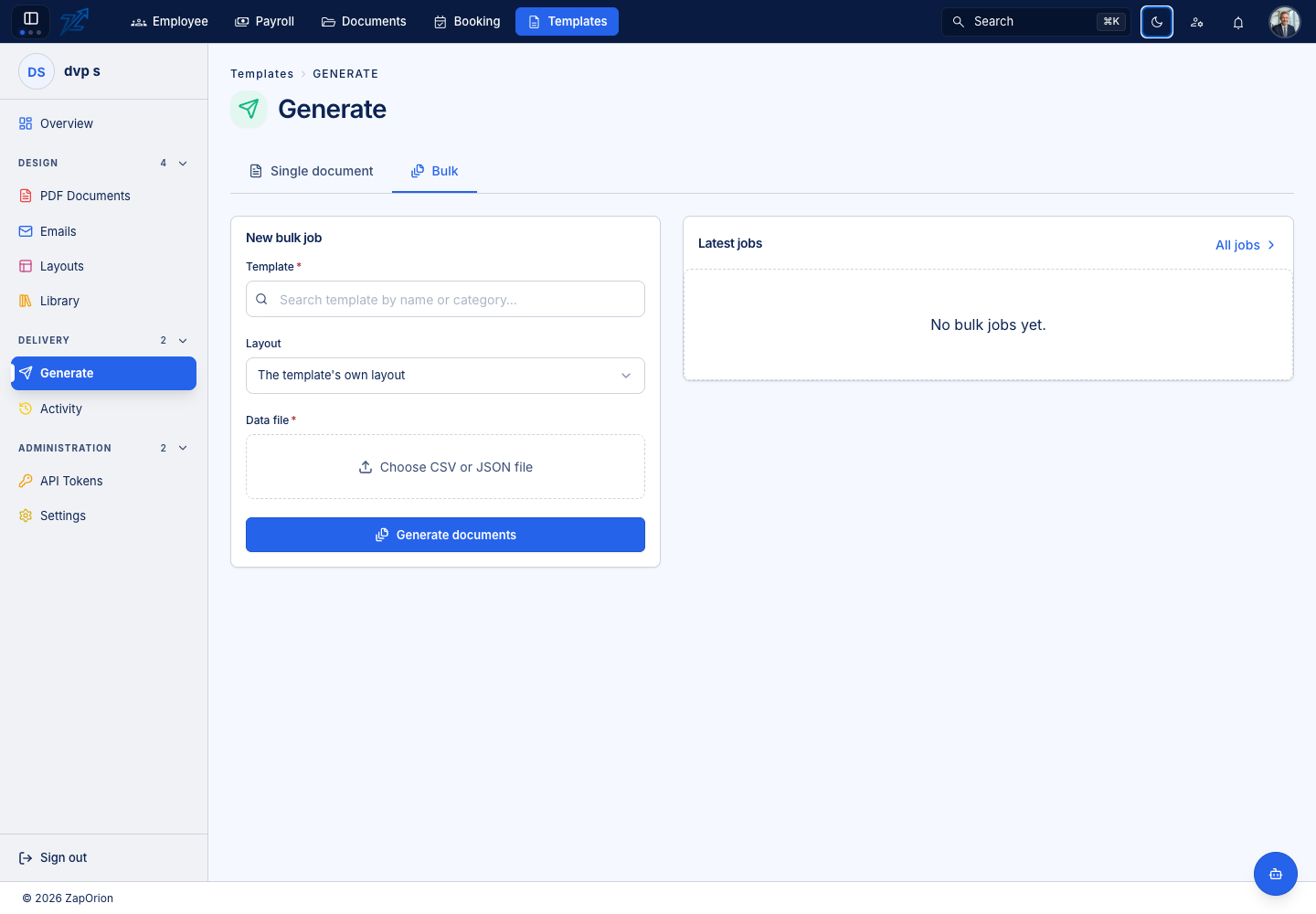
Prepare a CSV file
Select the template first, then use Download CSV template when offered. Its columns follow the variables used by the active design and include sample values. Replace the samples with your real records.
fileName,customer.name,reference,total
invoice-1042,Asha Rao,INV-1042,12500.5
invoice-1043,Dev Patel,INV-1043,9800
The optional fileName column names the output. Dotted columns such as customer.name and lines.0.amount become nested objects and arrays. Keep headers aligned with the selected template's data fields. Quote values containing commas according to CSV rules.
Prepare a JSON file
Use an array of data objects, or the explicit item form:
[
  {"fileName": "invoice-1042", "data": {"customer": {"name": "Asha Rao"}, "reference": "INV-1042", "total": 12500.5}},
  {"fileName": "invoice-1043", "data": {"customer": {"name": "Dev Patel"}, "reference": "INV-1043", "total": 9800}}
]
Use the exact nesting expected by that template. JSON must be valid and the outer value must be an array.
Submit and inspect
- Choose the PDF template and optional layout override.
- Choose the CSV or JSON file.
- Review its row count and first preview rows. Correct parser errors before submitting.
- Choose Generate … documents.
- The job detail opens with completed, failed and total counts.
- Inspect individual errors and download completed items.
Submission queues work; it does not mean every record succeeded. The job page refreshes while active. Use Activity → Bulk jobs to return later. For a partial failure, correct the affected input and submit those records separately so successful outputs are not duplicated unnecessarily.
Tenant limits can cap items per job and render usage. Ask a platform administrator to review Settings if a valid batch is refused by policy.