Troubleshooting
Start with the symptom below. Record the page, document name, time and visible error if you need administrator support. Do not include passwords or API tokens.
| Symptom | What to check |
|---|---|
| Documents or Templates is missing from the module bar | Correct organisation and role assignment; sign out and in after a role change |
| Browse is empty | Selected folder, any name filter, and your group or individual access. An empty root may contain only subfolders |
| Upload is absent | The selected folder must grant upload access; a Viewer can browse without uploading |
| A file is rejected during upload | Tenant extension policy, maximum size, duplicate-name decision and remaining quota |
| A preview cannot open | File type support, download permission and whether processing has finished; try Download |
| A scanned PDF has no selectable text | It may contain only page images. Search indexing or agent OCR is a separate process |
| Edit is disabled | Item permission, file type, another person's edit lock/check-out, or Office editor availability |
| A workflow is waiting | Open its timeline; identify the active task, agent read or API call before retrying anything |
| Search misses a file | Scope, tags and metadata filters, item access, indexing configuration and Background Jobs |
| A metadata value looks old | Pending extraction/index work, applicable field definitions and saved corrections |
| An AI read needs review | Missing required fields, confidence threshold, allowed values, model availability or run error |
| Template Save is disabled | There may be no changes, or a save may already be running |
| Template Save reports unresolved variables | Add the required Input JSON/metadata/layout reference or correct the variable path |
| A template is listed as Not active | Saving a draft does not activate it; use Versions → Activate |
| Generated content differs from your draft preview | Generation uses the active saved version. Check its version, layout and data |
| Email is stopped by configuration | Check Activity and ask the platform administrator about email settings |
| A bulk job partly failed | Open the job and inspect individual results; correct input and submit the affected records again |
Escalating a processing issue
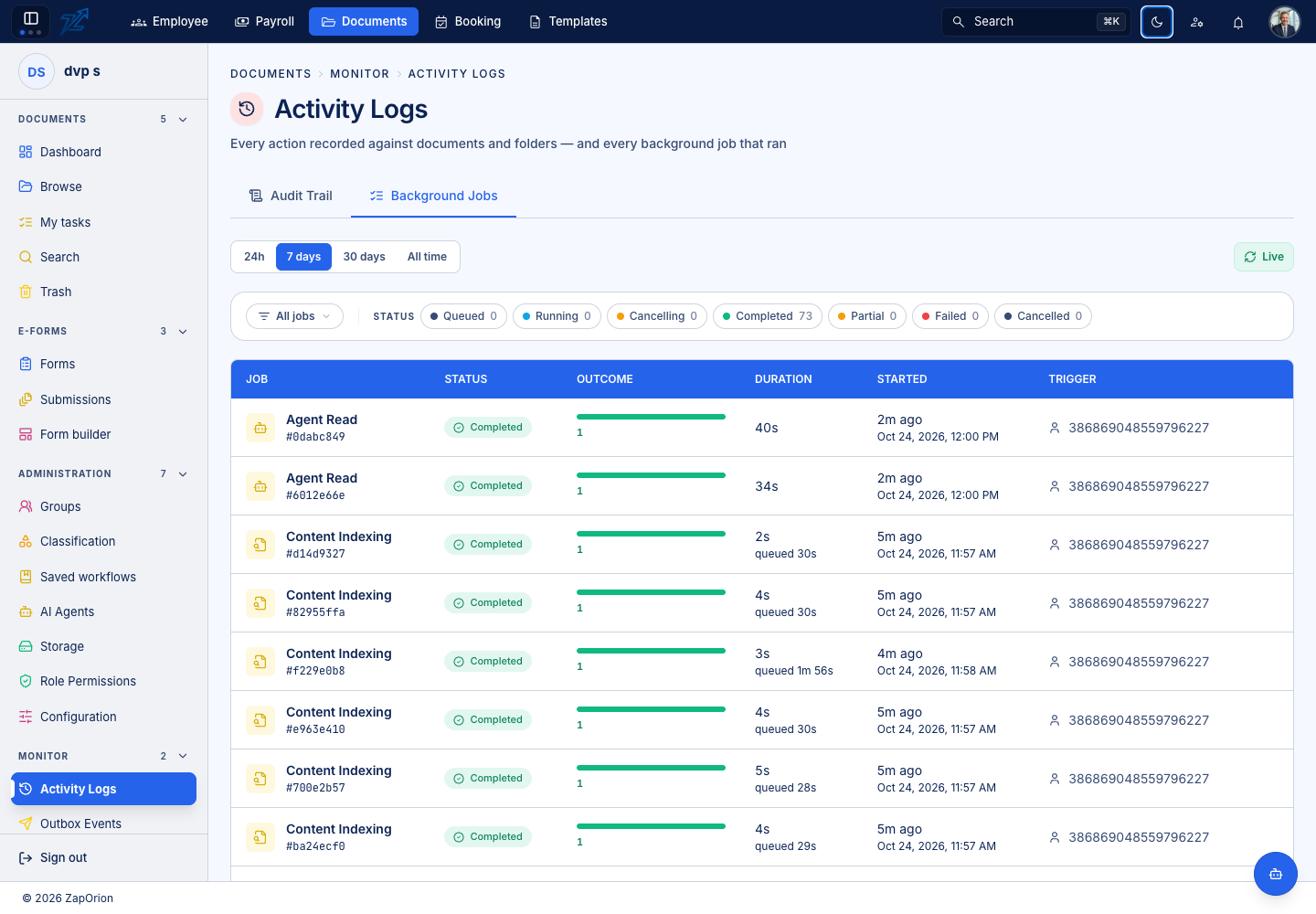
For Documents, administrators can use Monitor → Activity Logs → Background Jobs, the document's workflow timeline and the AI run trace. For Template, use Delivery → Activity and its Bulk jobs tab. A pending UI message alone does not establish that a background job is currently running.
An API call that times out may already have changed the destination system. Check the destination and the workflow result before starting another run.