Navigation and appearance
The module bar switches applications. The left sidebar contains the pages in the selected module. Breadcrumbs show your location within a page or folder.
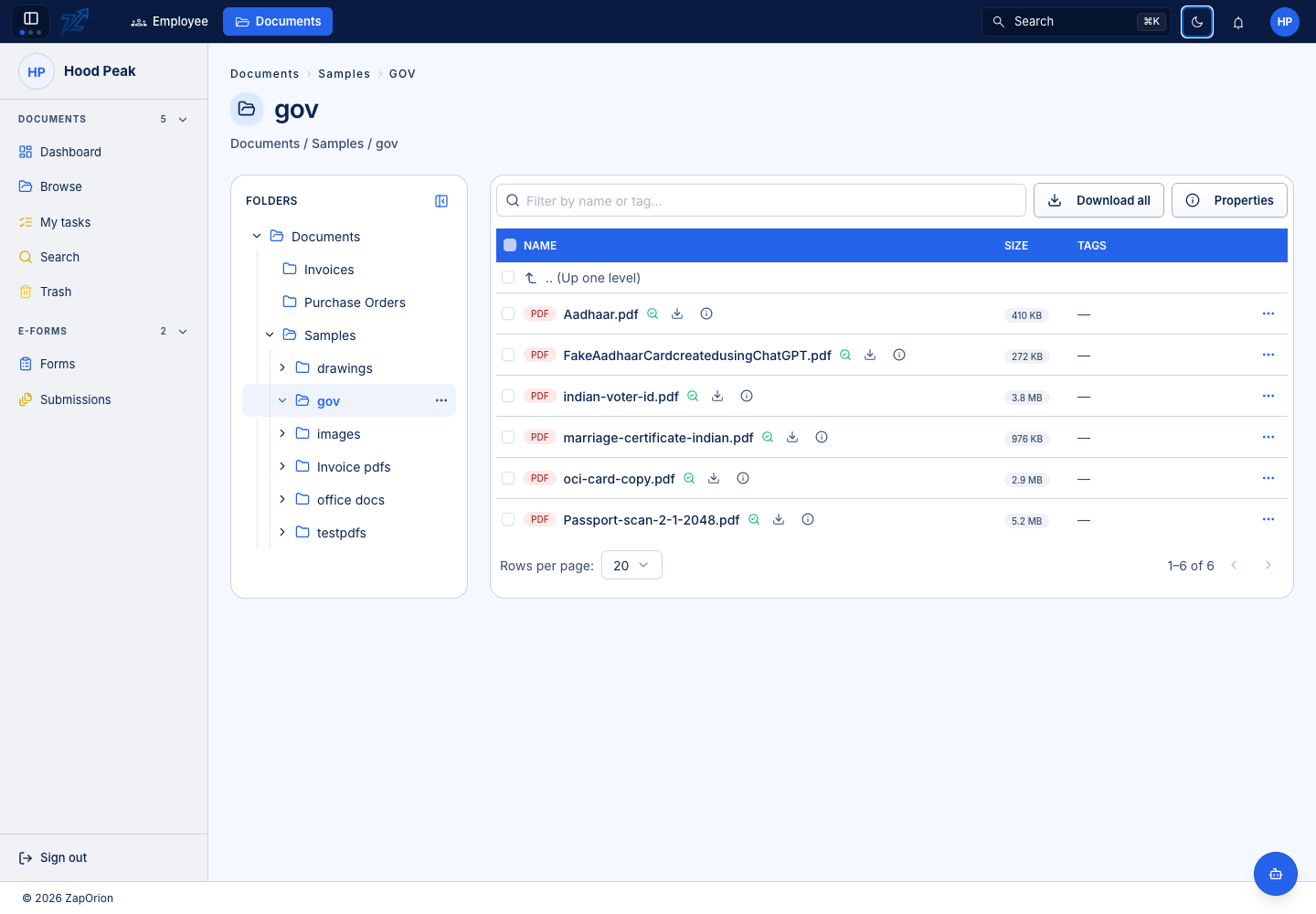
Find a page or item
Use Search in the top bar, or Cmd+K on macOS / Ctrl+K on other systems, for the global search palette. Enter a page, tab, document or folder name. Available results depend on the module and your access. Use Documents → Search for detailed document filters and content matches.
In Browse, click a folder in the tree or its name in the contents list. Click a document name to preview it. Closing the preview returns you to the originating page with its position and selection retained.
Change the appearance
Use the sun/moon control in the app's top bar to switch light and dark modes. The account menu contains further appearance controls, including the palette and background options available in that deployment.
This manual has its own colour-mode control in its navigation bar. Changing it switches the documentation appearance, screenshots and module branding together. It does not change your signed-in ERP preference.
Use the correct sidebar
Documents has Documents, e-Forms, Administration and Monitor groups. Template has Design, Delivery and Administration groups. A missing group may be expected for your account; see Access and roles.