Sign in and open a module
Open your organisation's ERP address. The app sends you to its sign-in service. Use the account issued by your administrator.
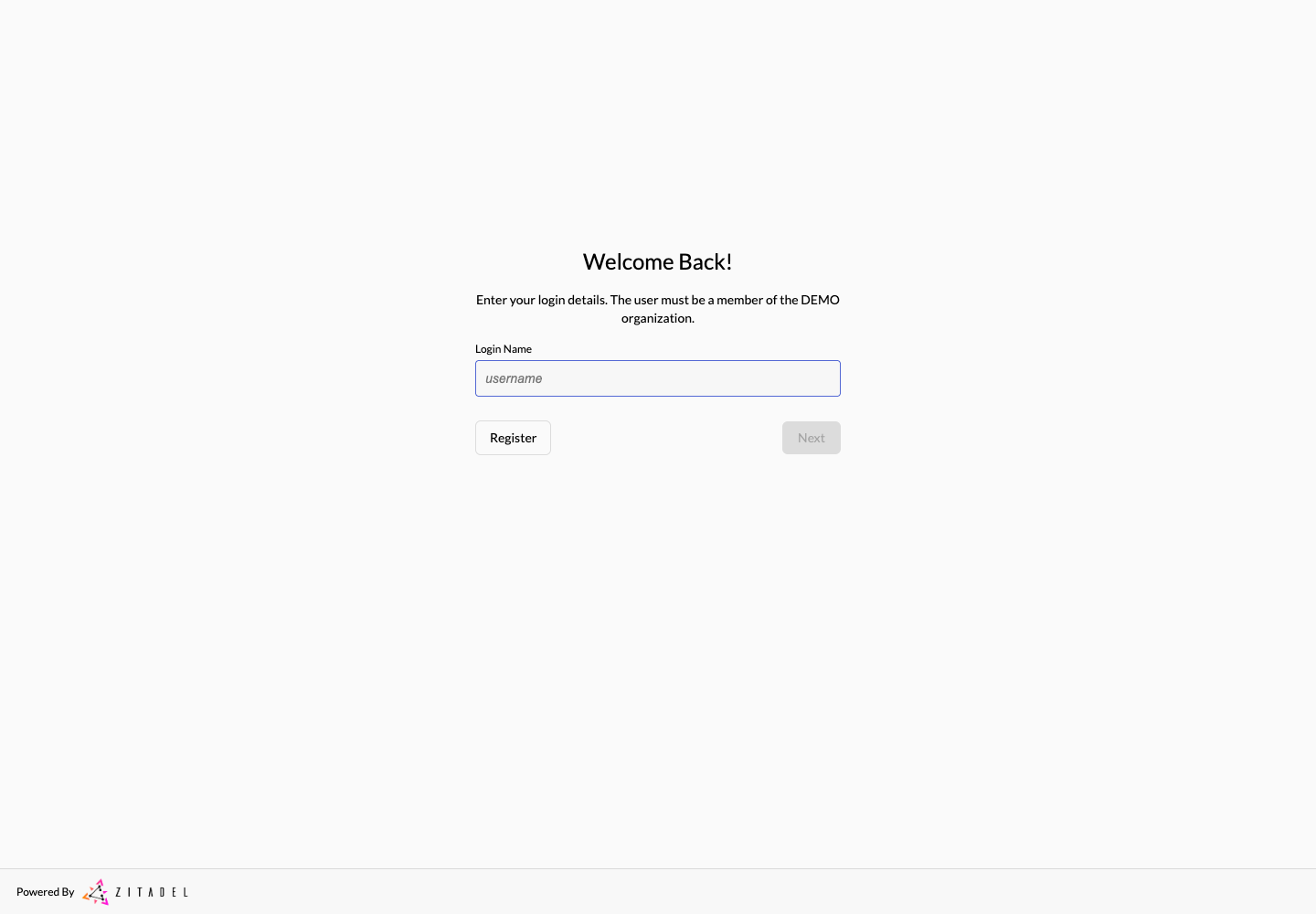
Sign in
- Enter your Login Name and choose Next.
- Enter your password and continue. Complete any additional verification requested by your organisation.
- Once the ERP opens, choose Documents from the module bar.
- Choose Templates to open the Template module.
The module bar only shows modules your account can access. When a role has just been assigned, sign out and sign in again so the app receives the updated roles.
Sign out and resume work
Use Sign out in the sidebar. Save editor changes before leaving. A timed-out session may send you back to sign-in; return to the relevant document or template after authentication and check whether your last save completed.
If the login name or password is rejected, verify the account and organisation with your administrator. Missing modules and empty folders have different causes; use Access and roles before changing permissions.
Continue with Navigation and appearance.