e-Forms overview
An e-Form collects structured answers, creates a stored submission and can send that submission through a workflow. It is different from a reusable PDF/email design in the Template module.
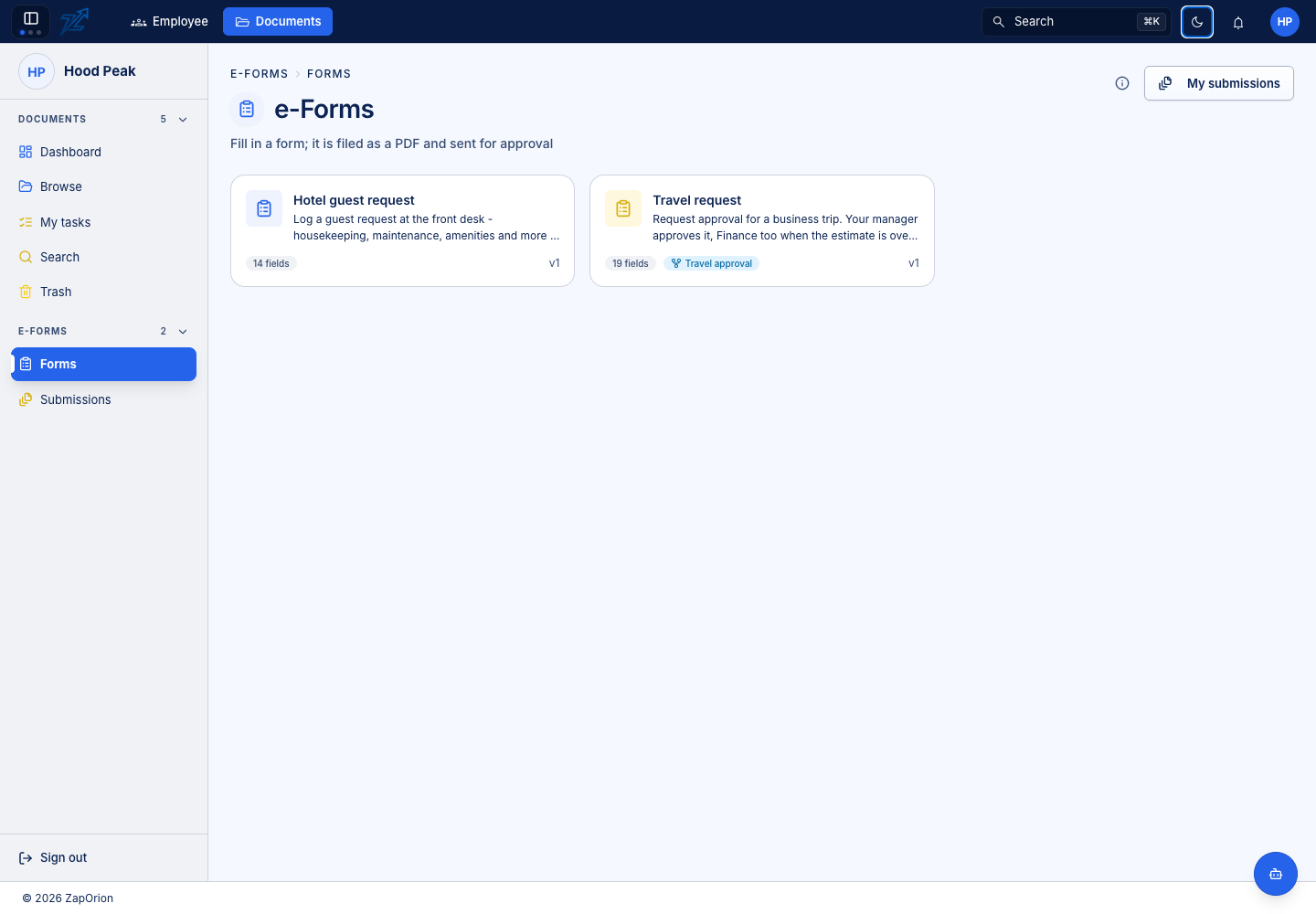
Choose a form
Open e-Forms → Forms. Read the form's name and description, then open it to fill in the answers. Only published forms available to you appear. If a form is missing, ask its owner to check publication and its audience.
A submitted form can produce a document filed into the configured folder. Its workflow may then require review, additional answers or an e-signature. Use e-Forms → Submissions to follow its status rather than submitting the same request again.
Choose the right guide
| You need to | Read |
|---|---|
| Enter answers and submit | Fill a form |
| Follow or review an existing request | Submissions |
| Define fields, filing and workflow | Form builder |
Outside submission links
Where enabled, form link controls let an authorised person create a submission link for an outside recipient. Review who the link is for, how long it remains valid and its current state. Revoking an invitation stops further use of that link; it does not erase an existing submission.
An outside form link is not a general login or permission to browse Documents. The form designer and tenant policy decide what that recipient can do.