Fill in and submit a form
Open e-Forms → Forms and choose the required form. Read its instructions before entering information.
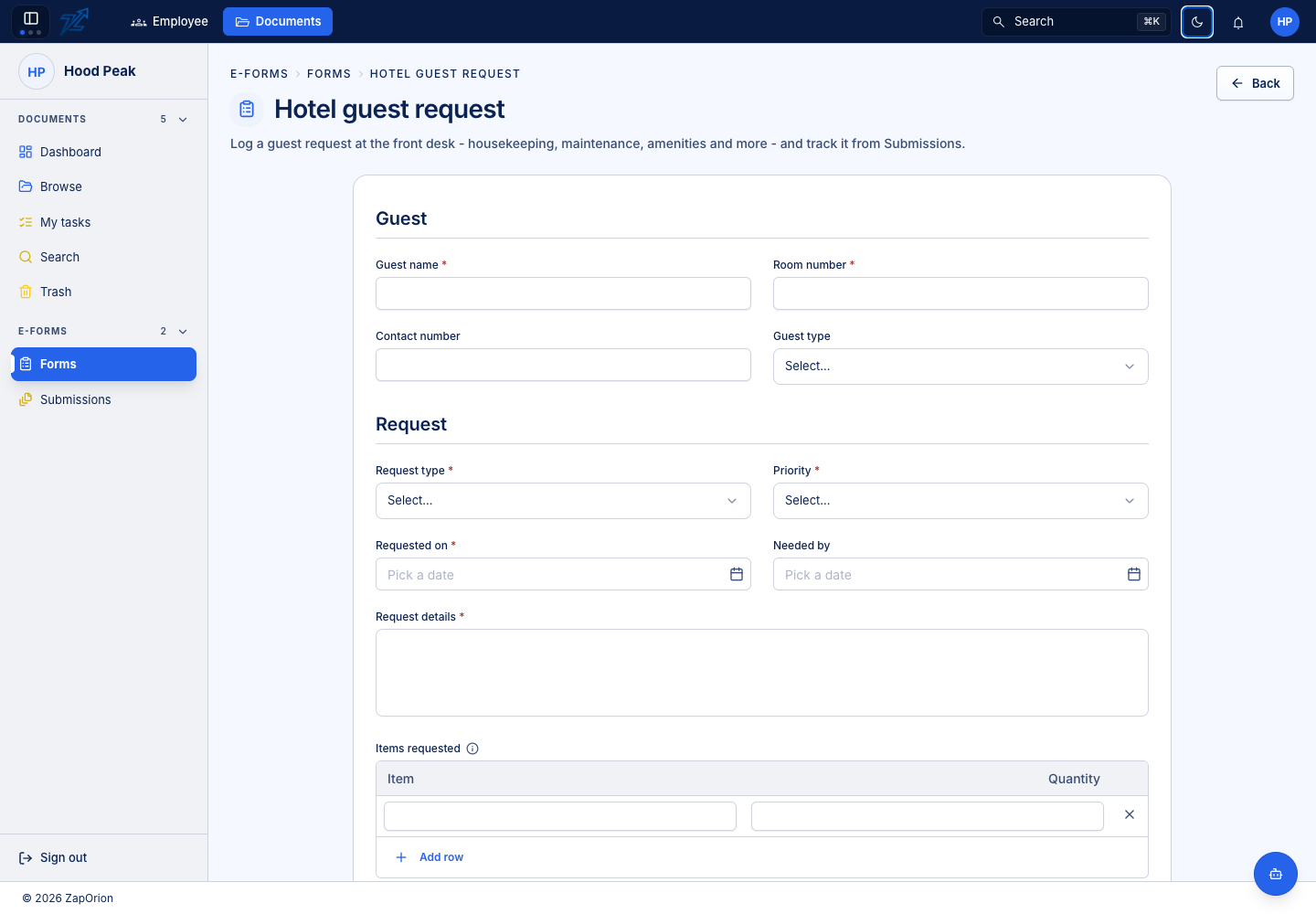
Complete the request
- Fill in required fields marked *.
- Select the correct choices and dates. Follow the units and examples shown in help text.
- Add line-item rows where needed. Check numeric columns and any totals.
- Attach the requested files; check their names and contents.
- Complete a signature only if the form asks you to provide one at this stage.
- Review the answers, then choose the submit action.
- Record the confirmation/reference and open the submission to check its status.
Reviewer-only fields can be unavailable to the submitter. They are completed by the person responsible for the appropriate workflow step. Do not put their answers into an unrelated text field.
Validation and retrying
A required checkbox, empty line-item table or missing attachment can prevent submission. Correct the marked fields and try again. If the page reports a network failure, check Submissions before creating a second request; the original may already have reached the server.
Using an outside link
Open the emailed invitation. The outside form link works without a Documents sign-in, is valid until its expiry and accepts one submission. Confirm that the form and recipient details are correct. An expired, revoked or already-used link may no longer accept an answer. Request a replacement link from the sender rather than using another person's invitation.
After submission, follow the confirmation instructions. Internal users can continue in Submissions.