Manage groups and membership
Open Administration → Groups. Groups collect people who should receive the same document permissions or participate in the same workflow tasks.
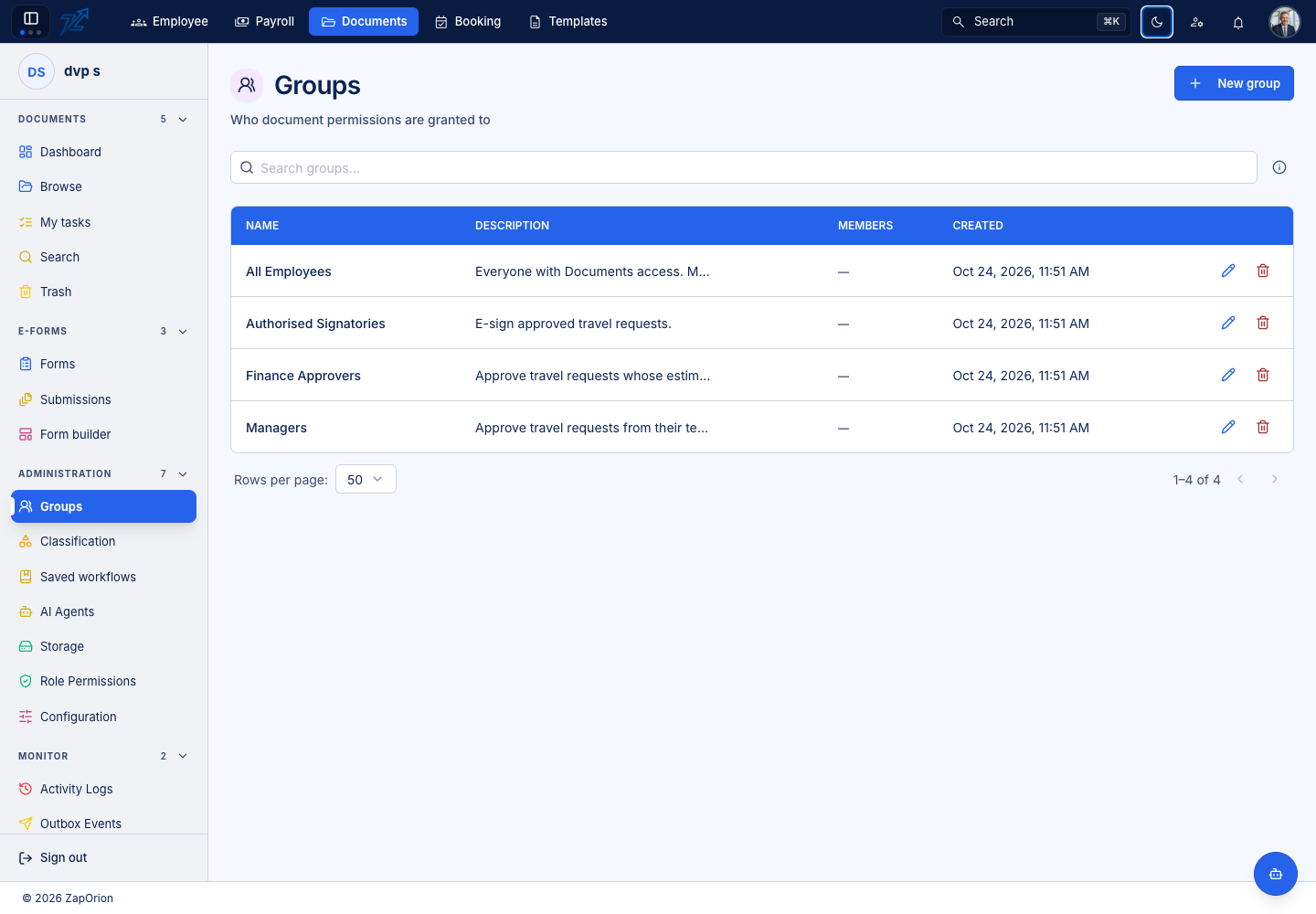
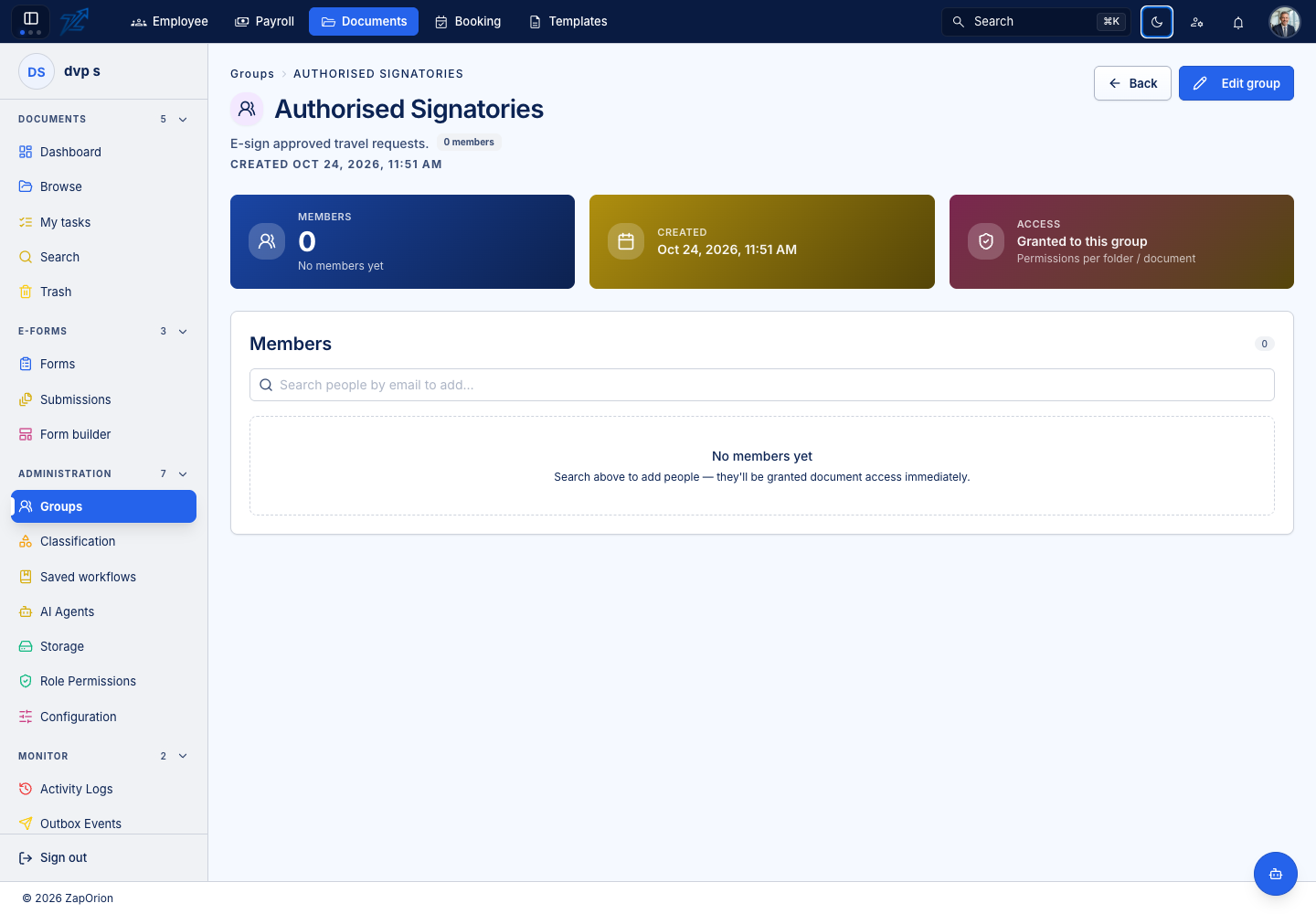
Create and maintain a group
- Choose New group and enter a name and useful description.
- Save the group and open its detail page.
- Add the intended people from the available directory lookup.
- Check the members and remove people who no longer belong.
- Grant the group an item role on the relevant folder or document.
Creating a group does not itself grant access to a folder. Membership and the item grant are separate decisions.
Built-in membership
All Employees is a system group for people with Documents access. Its membership is automatic and cannot be edited like an ordinary group. Granting a broad group access can make content visible to many people; verify that this matches the folder's purpose.
Workflow groups
A workflow can assign a step to a group, for example Managers or Finance Approvers. Read the step's Any/All completion rule when deciding whether one member can complete the group task or multiple actions are required.
Before removing a group, inspect the folders, documents and saved workflows that use it. Replace the intended access or participants first so a business process does not lose its reviewers.