Export and import folder records
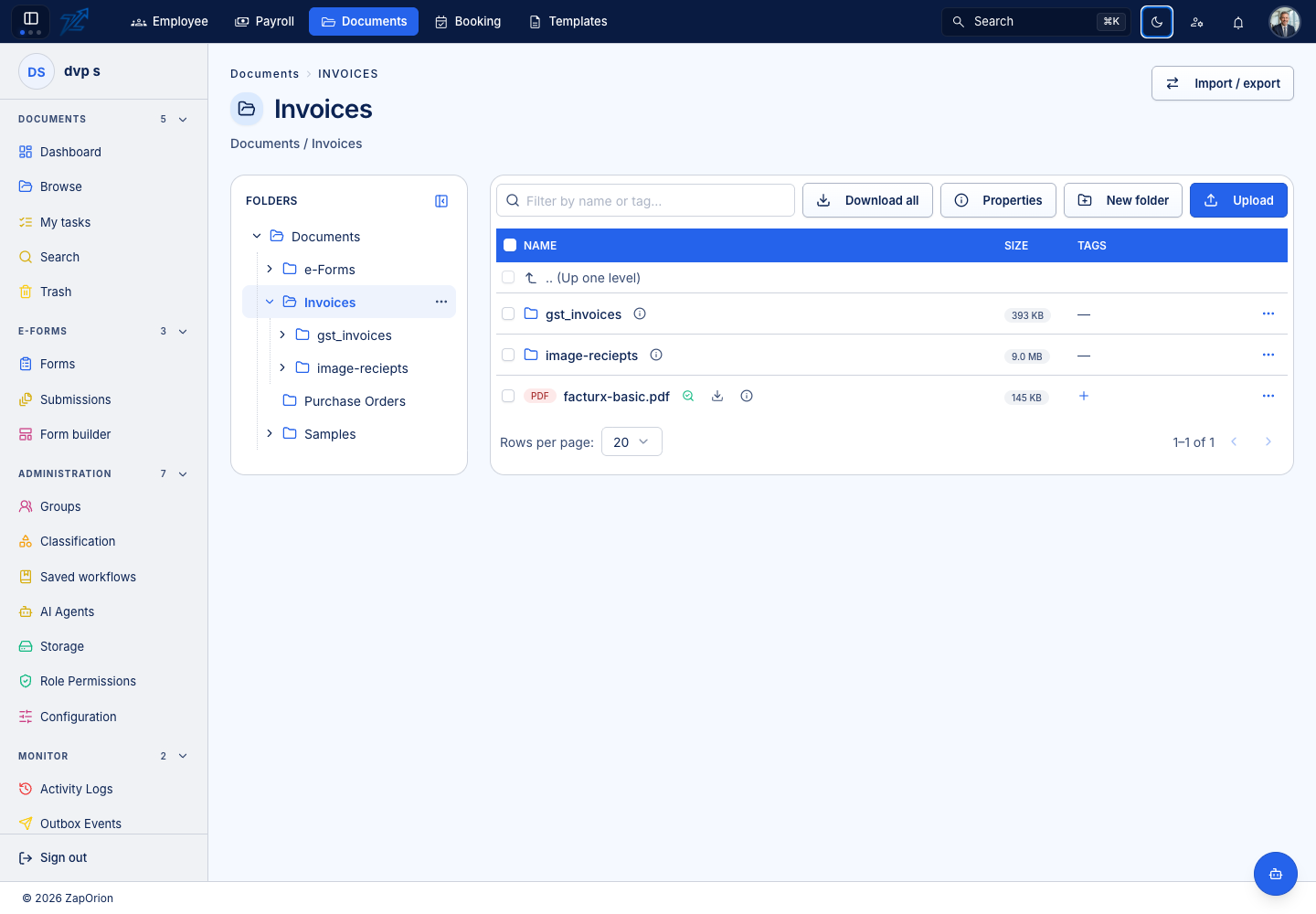
Documents administrators have Import / export on a folder's Browse page. This transfer uses a versioned Documents JSON manifest containing folder/document records and references to existing stored objects.
Export
Open the source folder and choose Import / export → Export folder. Keep the downloaded .documents.json file. It describes the live folder tree, documents and accepted stored versions. Trashed branches and draft documents are excluded.
The export contains object references, not the file bytes or storage credentials. It is not a self-contained file backup. Preserve the referenced storage objects through the transfer process.
Import
- Open the intended destination parent folder.
- Choose Import / export → Import folder.
- Select a valid Documents folder export. Selecting it starts the import operation.
- Read the result counts for folders, documents and versions.
- Open the imported root and verify content and effective permissions.
The receiving service checks the manifest, destination, configured storage bucket and referenced objects. Missing objects, changed sizes, invalid trees or conflicting records can prevent import. Copying the JSON to an unrelated storage environment is insufficient.
Imported records use destination inheritance rather than recreating every original access grant. Review permissions and any required business configuration after import. A folder-reference export is separate from saved-workflow JSON and Template design exports; use each feature's own import control.